
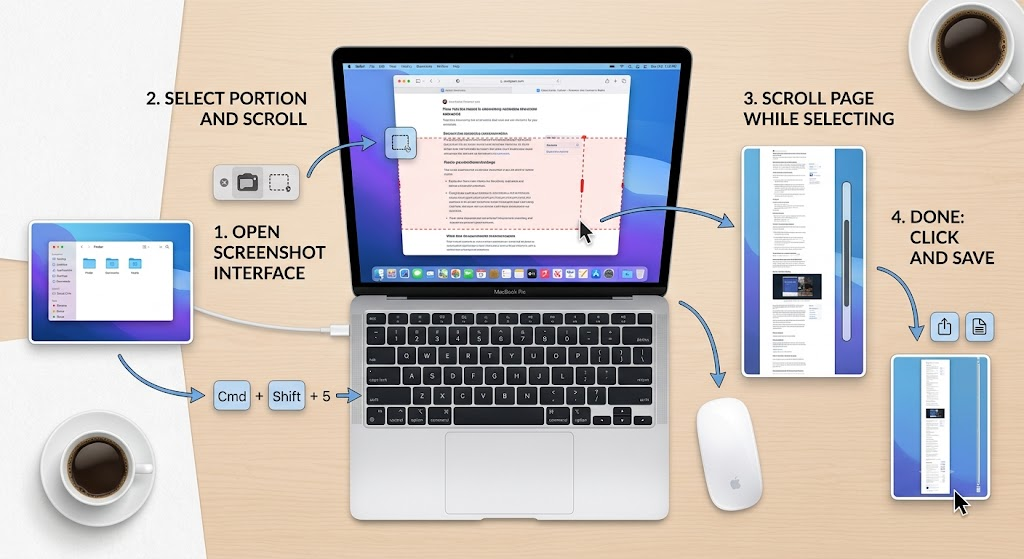
The Ultimate Guide to Capturing Full-Page Screenshots on macOS
Capturing standard screenshots on macOS is seamless using native keyboard shortcuts like Command + Shift + 3 or Command + Shift + 4. However, when you need to capture an entire scrolling webpage, long legal document, or lengthy chat thread, the basic macOS screen capture utility falls short. Many users immediately resort to downloading third-party browser extensions or paid utilities from the Mac App Store. Fortunately, you do not need to install bloatware or sacrifice your privacy to achieve flawless full-page captures.
This comprehensive guide demonstrates how to achieve a Mac scrolling screenshot without software installation. By using hidden native tools inside macOS, Safari, and popular web browsers, you can capture full-length digital content cleanly and securely in 2026. Whether you are an executive archiving financial reports, a designer studying layout architecture, or a developer reviewing web assets, these built-in methods will streamline your workflow.
Before diving into browser-specific hacks, it is worth understanding how macOS handles native display buffers compared to other platforms. If you work across dual-boot setups or enterprise environments, check out our companion guide on Mac vs Windows 11 screenshot shortcuts guide to master multi-OS productivity tricks.
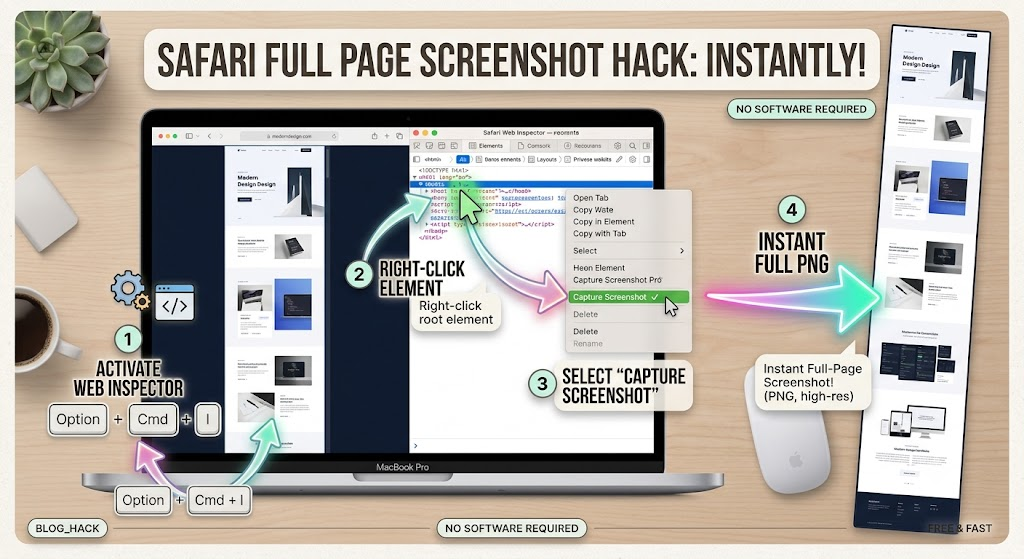
Method 1: Native Safari PDF Export (The Instant 1-Click Method)
Apple Safari includes powerful built-in utilities designed to capture full web pages without requiring any third-party app downloads. The most efficient native technique converts any live web page directly into a high-resolution full-length vector document.
Step-by-Step Safari PDF Capture
- Open the targeted website inside Apple Safari.
- Click on File in the top menu bar.
- Select Export as PDF… from the drop-down menu.
- Choose your preferred saving directory and click Save.
This built-in method creates an extended single-page vector document that preserves all page text, images, and embedded hyperlinks. Unlike pixel-based screen captures, vector PDFs allow you to search text, click links, and zoom in infinitely without loss of resolution. For official documentation on native browser management, consult the Apple Safari Official Support Guide.
Converting Safari PDF to Image Formats Natively
If your project demands a PNG or JPEG file rather than a PDF, you can convert it in seconds using macOS Preview without extra software:
- Double-click your exported PDF file to open it in Preview.
- Navigate to File > Export… in the Preview menu bar.
- Change the format dropdown to PNG or JPEG.
- Adjust the resolution slider to 300 pixels/inch for maximum clarity.
- Click Save to generate your final full-page image file.
Method 2: Safari Web Inspector Full-Page PNG Capture
For pixel-perfect raster web captures, Apple Safari includes a secret developer feature that generates a lossless PNG of an entire scrolling page with a single click. This feature captures lazy-loaded images and dynamic elements flawlessly.
Activating Safari Developer Tools
By default, Safari hides its developer menu. To activate it on your Mac:
- Open Safari and click Safari > Settings (or press Command + Comma).
- Click on the Advanced tab on the far right.
- Check the box that says Show features for web developers (or Show Develop menu in menu bar).
- Close Settings. You will now see a new Develop tab in your Mac menu bar.
Capturing the Full Page PNG
- Navigate to the webpage you want to capture completely.
- Right-click anywhere on the page background and select Inspect Element (or press Option + Command + I).
- In the Web Inspector panel that opens at the bottom, locate the top HTML node tag marked
<html>. - Right-click directly on the
<html>tag line. - Select Capture Screenshot from the context menu.
- Name your file and save the pristine full-page PNG to your Desktop or Downloads folder.
Pro Tip: Scroll down to the bottom of long web pages before taking the screenshot. This ensures lazy-loaded images and video thumbnails render fully into the browser DOM memory prior to snapshot execution.
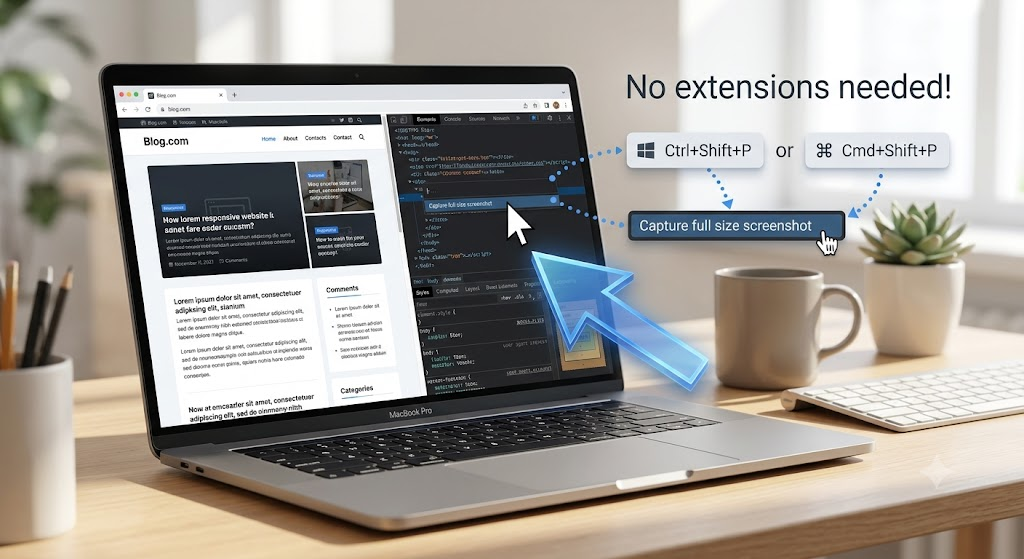
Method 3: Chrome and Edge Native Developer Command Palette
If Google Chrome or Microsoft Edge is your primary browser on macOS, you can leverage Chromium’s hidden engine features to perform full-page captures. You do not need Chrome Web Store extensions that harvest browsing data.
Step-by-Step Chrome Full-Size Screen Capture
- Launch Google Chrome on your Mac and load your desired webpage.
- Open Chrome Developer Tools by pressing Option + Command + I.
- Open the Developer Command Menu by pressing Command + Shift + P.
- In the command prompt text bar, type:
full size screenshot. - Highlight Capture full size screenshot and press Enter.
Chrome instantly renders the complete page from header to footer and automatically downloads a pixel-accurate PNG file into your default Downloads folder. To learn more about developer diagnostics, read the official Google Chrome DevTools Documentation.
Chromium vs Windows Alternative Workflows
This developer trick works identically across operating systems. If you also manage PC workstations, you can apply similar concepts for scrolling screenshots on Windows 11 without extra software to maintain complete productivity consistency across platforms.
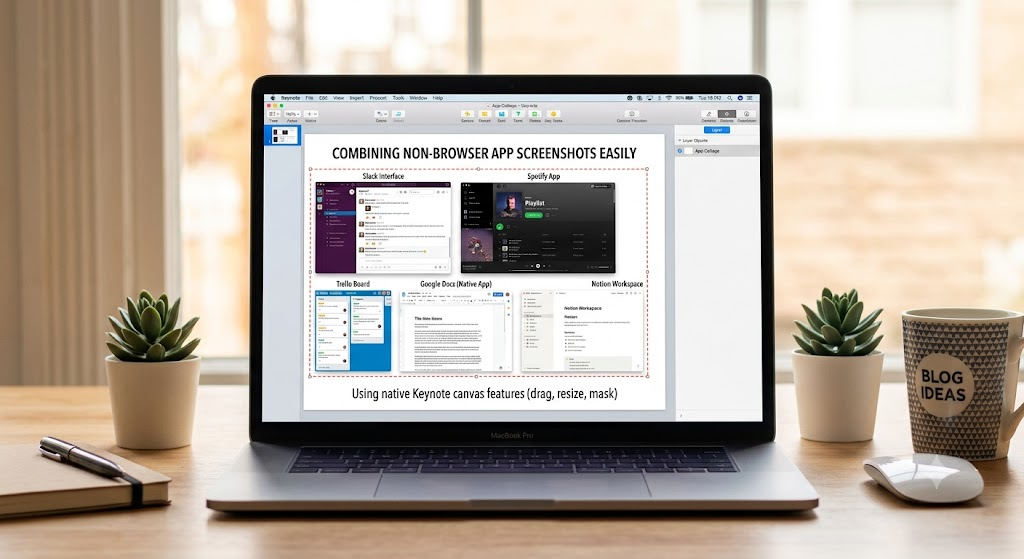
Method 4: macOS Preview Stitching & Keynote Canvas Hack
What if you need a Mac scrolling screenshot without software for a desktop app, PDF document, or private messaging app like Slack or iMessage? Browsers developer tools cannot capture non-web apps. Luckily, native macOS productivity tools offer creative stitching solutions.
The Keynote Endless Canvas Workflow
When capturing native macOS desktop applications, Apple Keynote provides an effortless canvas to align continuous screen fragments without distortion:
- Take sequential partial screenshots using Command + Shift + 4 as you scroll down your document or app window.
- Launch Keynote and open a new blank slide document.
- Go to Document Inspector on the upper right and change Slide Size to Custom Slide Size (e.g., 1920 width by 5000 height).
- Drag and drop your partial screenshots into Keynote.
- Align the overlapping regions visually. Keynote snap-guides automatically align text lines and borders perfectly.
- Click File > Export To > Images… or PDF to export your unified scrolling capture.
This native workaround takes under two minutes and eliminates security concerns associated with uploading sensitive documents to online third-party image converters.
Method 5: macOS Terminal & Webkit Automation
For power users, developers, and system administrators, macOS comes pre-installed with powerful command-line capabilities that automate web rendering and capture operations natively.
Automating Page Captures via Webkit Utility
Using built-in shell scripts or Python libraries pre-bundled in macOS, you can trigger full-length web renders programmatically without opening a visual browser window:
- Open Terminal on your Mac via Spotlight (Command + Space, type Terminal).
- Utilize headless Chromium commands or native AppleScript routines to automate page scroll rendering.
- Store output captures directly into specified project repositories automatically.
If you enjoy building custom macOS automated workflows, explore our guide on how to automate daily inbox triaging to supercharge your executive workplace productivity.
Comparison of Native macOS Scrolling Screenshot Methods
Choosing the right technique depends on your content type, required output format, and desired workflow speed. The comparison matrix below helps you select the best native approach:
- Safari Export to PDF: Best for articles, legal contracts, and hyperlinked documentation. Output: Vector PDF. Speed: Instant.
- Safari Web Inspector: Best for web designers needing exact CSS dimensions. Output: Lossless PNG. Speed: Fast (5 seconds).
- Chrome Command Palette: Best for web developers and Chromium power users. Output: High-res PNG. Speed: Ultra-fast (3 seconds).
- Keynote Canvas Stitching: Best for native Mac desktop apps, chat histories, and software UI designs. Output: PNG/JPEG/PDF. Speed: Moderate (1-2 minutes).
Pro Tips for High-Resolution Full-Page Captures
To ensure your full-page screenshots look crisp and professional across Apple Retina displays, keep these native optimizations in mind:
1. Mind the Retina Display Scale Factor
Mac computers equipped with Retina displays export web developer screenshots at double resolution (2x scaling). If file size becomes an issue when emailing or uploading to content management systems, open the file in Preview, select Tools > Adjust Size…, and scale the width down by 50% while preserving sharpness.
2. Pre-Scroll Dynamic Webpages
Modern web apps heavily utilize dynamic infinite scrolling and lazy-loaded image libraries. Before executing any Developer Tool command, scroll rapidly from top to bottom on the target page to trigger all image animations, then return to the top before capturing.
3. Hide Floating Sticky Headers
Sticky navigation bars can sometimes repeat endlessly across full-page screenshots. To eliminate sticky elements before taking a capture:
- Right-click the sticky header and choose Inspect Element.
- Press the Delete key on your keyboard to temporarily remove the header node from the DOM.
- Execute your full-page screenshot command cleanly.
Conclusion: Master Native macOS Captures
Mastering a Mac scrolling screenshot without software installation empowers you to record long web pages, app interfaces, and document streams with absolute privacy and maximum quality. By leveraging Safari Developer Tools, Chrome’s hidden Command Menu, and built-in apps like Preview and Keynote, you completely eliminate the need for subscription-based third-party software.
In corporate environments and high-security settings, keeping your workflow native protects confidential data while keeping your Mac clean, fast, and secure. Try these native 2026 macOS tricks on your next project and revolutionize your daily digital workflow.
FAQs
Can you take a scrolling screenshot on Mac using standard keyboard shortcuts?
Standard macOS keyboard shortcuts like Command + Shift + 4 only capture visible screen areas. However, you can use native browser shortcuts inside Safari and Chrome DevTools to capture entire scrolling web pages without installing any software.
How do I take a full page screenshot in Safari without installing extensions?
In Safari, enable the Develop menu via Settings > Advanced. Then right-click on any webpage, select Inspect Element, right-click the top tag in the Web Inspector tree, and click ‘Capture Screenshot’ to save a full page PNG.
How do I capture a full page screenshot using Chrome on Mac?
In Chrome, press Option + Command + I to open Developer Tools, then press Command + Shift + P to bring up the Command Menu. Type ‘full size screenshot’ and hit Enter to automatically download a complete page capture.
How do I convert a full-page PDF screenshot into a PNG image natively on Mac?
Open the exported PDF in Apple Preview, go to File > Export, choose PNG or JPEG as the format option, set the resolution to 300 pixels/inch, and click Save.
Why is my scrolling screenshot blurry or missing images?
Blurry captures usually occur due to dynamic lazy-loading. Before taking a full-page screenshot, scroll down to the bottom of the page so all lazy-loaded images load into browser memory, then trigger the screenshot.
2 thoughts on “Mac Scrolling Screenshot Without Software: 2026 Hacks”
Comments are closed.