
You’re about to buy a new laptop, or you’re just tired of Windows Defender popping up every five minutes, and you want a straight answer: which platform actually keeps you safer. The security mac vs windows debate gets thrown around a lot, but most of what you read online is either outdated or based on marketing claims instead of how these systems actually behave when malware hits.
Here’s the direct answer: macOS has a smaller attack surface because of its closed hardware ecosystem and stricter app review process, while Windows 11 has closed much of the gap with features like Defender, Smart App Control, and hardware-based isolation. Neither OS is immune to hackers, and both get exploited when users ignore updates or download sketchy software.
In this guide, we’ll break down how each system handles malware protection, built-in firewalls, sandboxing, and update practices. We’ll also look at real-world attack trends, not just theoretical vulnerabilities, so you can decide which machine fits your actual risk level, whether you’re a casual user, a small business owner, or someone who just wants fewer security headaches.
Why Mac vs Windows security matters more than you think
Most people frame the mac os vs windows security debate as a religious argument, Mac fans quoting virus-free myths and Windows users pointing at market share. That framing misses the point. Your choice of operating system determines your actual exposure to ransomware, phishing kits, and data theft, and that exposure has gotten more expensive and more personal over the last few years. If you store tax documents, client files, or crypto wallets on your machine, this isn’t an abstract debate. It’s a decision that affects whether a stranger can lock your files and demand payment to get them back.
Consider the old argument first, because it still shows up in comment sections everywhere: "Macs don’t get viruses because nobody targets them." That was roughly true in 2005. It’s false now. Apple’s own security engineering team has publicly acknowledged in threat reports that macOS-specific malware families have grown steadily, and independent researchers at firms like Malwarebytes have tracked multi-year increases in Mac-targeting threats. The reason is simple economics: Macs now hold a meaningful share of the premium laptop market, especially among people with money, like executives, creators, and small business owners. Attackers go where the payout is, and Mac users increasingly represent a payout worth chasing.
The safest operating system is the one you actually keep updated and use carefully, not the one with the better marketing story.
What attackers are actually doing in 2026
Attackers today rarely bother writing OS-level exploits when there’s an easier path: you. Phishing emails, fake software updates, malicious browser extensions, and social engineering over text or social media work on every operating system equally well. A convincing fake invoice attachment doesn’t care whether you’re running Windows 11 vs macOS security features underneath. It just needs you to click. This shifts the real battleground from "which kernel is more secure" to "which OS gives you the best tools to catch a mistake before it costs you."
That said, the platforms do diverge in a few concrete ways worth knowing before you compare features later in this guide:
- Malware volume: Windows still sees far more total malware samples because it runs on roughly ten times as many desktop devices worldwide, according to StatCounter’s long-running OS market share tracking.
- Targeted attacks: Mac-specific malware has grown in sophistication, including info-stealers like Atomic Stealer that specifically hunt for browser-saved passwords and crypto wallet keys.
- Enterprise targeting: Windows remains the dominant target for ransomware gangs hitting hospitals, schools, and businesses, because it dominates corporate environments.
- Supply chain risk: Both platforms have suffered from compromised third-party apps and libraries, so app source matters more than OS choice here.
The real cost of getting this wrong
Ransomware payouts, identity theft cleanup, and business downtime aren’t hypothetical line items. The FBI’s Internet Crime Complaint Center has reported billions of dollars in annual losses tied to cybercrime in the United States alone, and small businesses without dedicated IT staff absorb a disproportionate share of that damage. A single successful phishing attack against a freelancer’s laptop can mean a drained bank account or a client’s confidential files leaked, regardless of whether that laptop runs macOS or Windows.
Security also isn’t a one-time setting you configure and forget. Every version of both operating systems ships with different defaults, and Apple and Microsoft each push meaningful security changes with major releases. That’s why a fair windows vs macos security comparison has to look at current versions, not decade-old assumptions. Windows 11 introduced hardware-backed protections like virtualization-based security that didn’t exist in earlier releases, while recent macOS versions tightened permission prompts for apps trying to access your camera, microphone, or files. Neither vendor stands still, and neither should your expectations.
Finally, this decision matters because your risk tolerance and use case should drive the choice, not brand loyalty. A solo freelancer editing photos has a very different threat profile than a small law firm handling client records, and both differ again from a college student juggling shared computer labs. The next sections break down exactly how each OS handles malware defense, encryption, and daily hardening steps, so you can match the platform to your actual life instead of a forum argument.
How macOS and Windows defend against malware
Both operating systems now ship with real, functioning antivirus engines built in, so the "Macs don’t need antivirus" claim and the "Windows Defender is useless" claim are both outdated. Apple runs XProtect, a signature-based scanner that runs silently in the background and updates automatically, often multiple times a week, without you ever touching a settings menu. Microsoft runs Microsoft Defender Antivirus, which has matured into a genuinely competitive engine that consistently scores well in independent testing from labs like AV-Test. Neither one is a toy anymore, and neither one is a complete solution on its own.
Defender pulls ahead in one specific area: cloud-connected threat intelligence. When Defender flags a suspicious file, it can query Microsoft’s cloud in real time and get a verdict back in seconds, based on data pulled from hundreds of millions of Windows machines reporting threats globally. XProtect relies more on periodic signature updates pushed by Apple, which means brand-new macOS security threats sometimes have a slightly longer window before detection catches up. This gap matters less for casual users and more for anyone handling sensitive client data where a few hours of exposure could be costly.
The built-in scanner matters less than whether you click install on the fake update popup in the first place.
Gatekeeper vs Smart App Control
Gatekeeper has quietly become one of Apple’s strongest defenses. Every app you download outside the App Store gets checked against Apple’s notarization system before macOS lets it run, and unsigned or tampered apps get blocked outright unless you manually override the warning. Windows answers this with Smart App Control, a newer feature in Windows 11 that uses cloud-based AI models to block unsigned or low-reputation apps before they execute. Smart App Control is genuinely effective, but it only runs on a clean install and disables itself permanently if you turn it off once, which is a design choice worth knowing before you dismiss that first prompt out of frustration.
| Feature | macOS | Windows 11 |
|---|---|---|
| Built-in scanner | XProtect | Microsoft Defender Antivirus |
| App vetting | Gatekeeper + notarization | Smart App Control |
| Isolation | App sandboxing, SIP | Core Isolation, Memory Integrity |
| Update model | Automatic, frequent | Automatic, frequent |
Sandboxing and system-level isolation
Sandboxing is where the platforms genuinely diverge in philosophy. Apple sandboxes App Store apps aggressively and layers on System Integrity Protection (SIP), which prevents even a user with admin rights from modifying critical system files without special steps. Windows achieves something similar through Core Isolation and Memory Integrity, which use virtualization to wall off core processes from the rest of the operating system, but these features aren’t always enabled by default on every device depending on hardware support. If your laptop’s chip doesn’t support the required virtualization extensions, you lose that protection layer entirely, something Mac users never have to worry about since Apple controls the hardware and software together.
Comparing encryption, privacy, and data collection
Encryption is where both platforms actually perform well, though they get there differently. FileVault on macOS encrypts your entire drive using XTS-AES-128 encryption tied to your login password, and it’s been on by default for new Mac setups since Apple started nudging users toward it during initial setup. BitLocker on Windows offers comparable full-disk encryption, but it’s historically been gated behind Windows 11 Pro, leaving Home edition users exposed unless they manually enable device encryption, which requires specific hardware like a TPM 2.0 chip and Modern Standby support. This is a real gap in the windows vs mac security conversation that Microsoft still hasn’t fully closed for budget laptops.
Encryption only protects you if it’s actually turned on, so check your settings today instead of assuming your laptop already has it.
Data collection and telemetry differences
Apple built its entire brand around privacy as a selling point, and the product decisions back that up more than most competitors. App Tracking Transparency forces every iOS and macOS app to ask permission before tracking you across other apps, and Apple’s own revenue model depends on hardware sales rather than advertising data. Microsoft runs a fundamentally different business, and Windows telemetry reflects that. Windows 11 collects diagnostic data by default, and while you can reduce it in Settings under Privacy & Security, you can’t disable it completely without registry edits or enterprise-tier group policy tools most home users never touch. Neither company sells your files to strangers, but the default data collection posture genuinely differs, and that difference matters if you’re comparing mac security vs windows for privacy-sensitive work like legal or medical files, the same way how Copilot and Gemini handle finance and healthcare data decides which cloud suite you can safely use.
Comparing the defaults side by side
Here’s how the two platforms stack up once you look past the marketing pages:
| Category | macOS | Windows 11 |
|---|---|---|
| Full-disk encryption | FileVault, on by default | BitLocker, Pro edition or hardware-dependent |
| Ad tracking controls | App Tracking Transparency | Advertising ID, opt-out available |
| Diagnostic telemetry | Minimal, opt-in analytics | Required baseline, reducible not removable |
| Cloud backup encryption | End-to-end for most iCloud data | End-to-end optional for OneDrive |
Notably, iCloud’s advanced data protection now extends end-to-end encryption to most backup categories, a step Apple detailed publicly in its own security documentation, while OneDrive’s Personal Vault offers similar protection but requires you to opt in manually rather than getting it by default.
Regardless of platform, the biggest privacy leak usually isn’t the operating system at all. It’s the cloud accounts, browser extensions, and third-party apps you’ve granted permission to over the years, and both Apple and Microsoft now include activity logs that let you audit exactly what’s accessing your camera, location, and files. Reviewing that list once a quarter does more for your actual privacy than switching operating systems ever will, and it’s a habit worth building whether you’re troubleshooting a bootloop on an Android phone or locking down a work laptop full of client contracts.
Do you actually need antivirus on a Mac or Windows PC
Short answer: yes, but the shape of that answer changes depending on which machine you own and what you actually do with it. Built-in protection on both platforms has genuinely improved, but "built-in" doesn’t mean "complete," and the gap between the two shows up most clearly once you start asking practical questions instead of theoretical ones.
When Windows Defender is enough
For most home users running Windows 11, Microsoft Defender covers the basics well enough that you don’t need to pay for a third-party suite. Independent labs like AV-Test routinely score Defender in the same range as paid competitors for malware detection, and it integrates directly with Smart App Control and SmartScreen, so suspicious downloads get flagged before you even open them. Where Defender falls short is add-on features like VPN bundling, dedicated ransomware rollback, or dark web monitoring, which is where paid suites like Bitdefender or Norton earn their subscription fee. If you’re a casual user who keeps Windows updated and avoids pirated software, Defender alone is a reasonable bet.
A free built-in scanner that’s actually turned on beats an expensive suite you installed once and never updated.
When macOS users should stop assuming they’re safe
Here’s where the mac vs windows security conversation gets uncomfortable for longtime Mac users: XProtect is real, but it’s reactive by design, and Apple has never marketed it as a full antivirus replacement. If you download cracked software, click links in unsolicited emails, or install browser extensions from outside the App Store, you’re exposed the same way a Windows user would be. Info-stealers like Atomic Stealer specifically target Mac users who assume they’re untouchable, which is exactly why that assumption is the vulnerability, not the operating system itself.
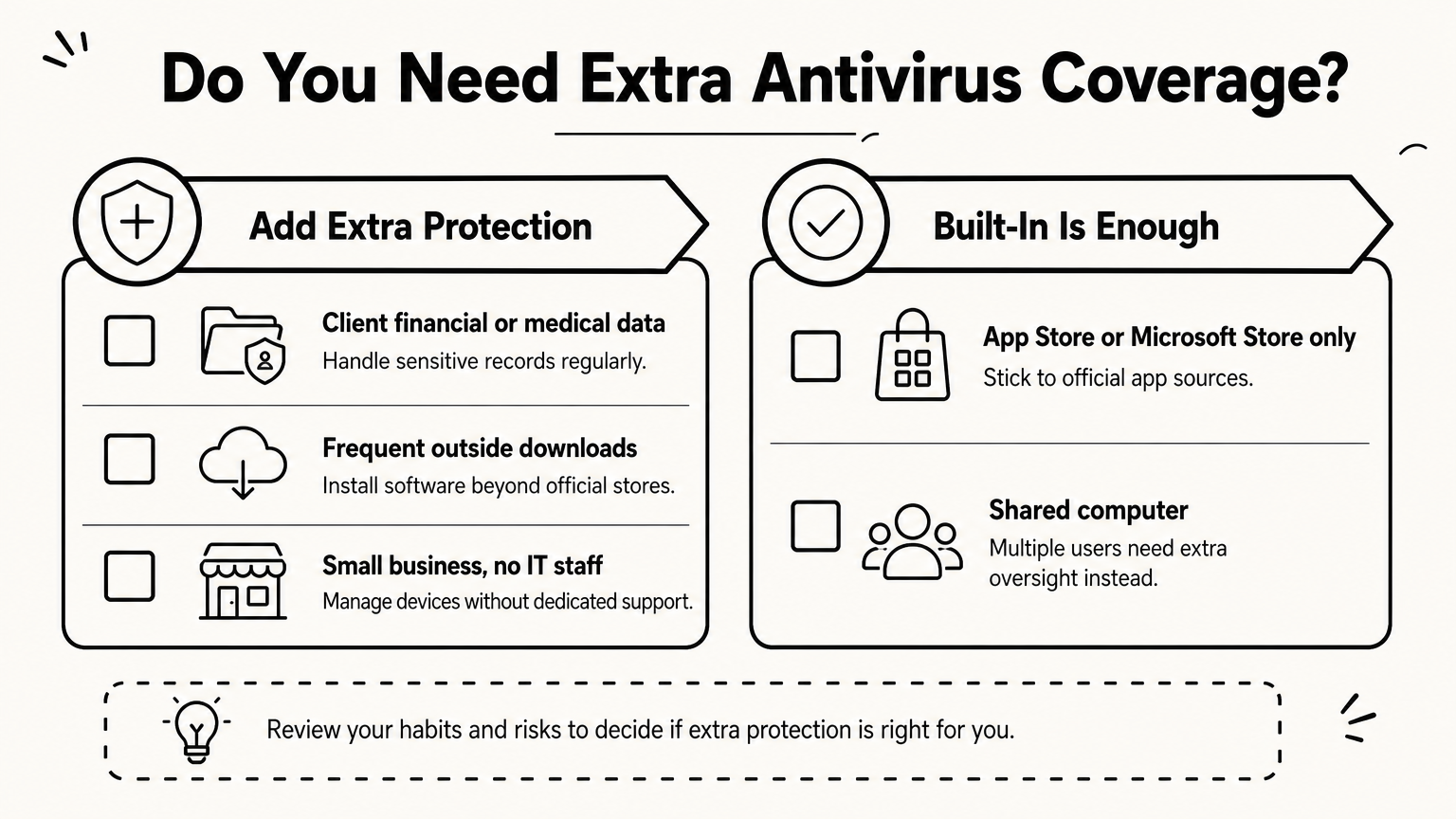
Use this quick checklist to decide if you need extra antivirus coverage beyond what ships with your OS:
- You handle client financial data or medical records, add a paid endpoint solution regardless of platform.
- You frequently download software outside official stores, third-party antivirus with real-time scanning is worth it.
- You run a small business without dedicated IT support, managed antivirus with centralized reporting saves you time later.
- You’re a casual home user who sticks to the App Store or Microsoft Store, built-in protection is genuinely sufficient.
- You share a computer with kids or roommates, extra protection catches mistakes you can’t personally monitor.
The real deciding factor
What separates a safe setup from a risky one usually isn’t the antivirus brand, it’s whether real-time scanning stays enabled, whether you actually read update prompts instead of dismissing them, and whether you reuse passwords across accounts. A windows 11 vs macos security comparison on paper always favors whichever platform has the newer feature list, but in practice, both platforms fail the same way: a user disables a protection because it’s inconvenient, then forgets to turn it back on. Antivirus software is a safety net, not a substitute for basic digital hygiene.
How to lock down security on your Mac or Windows PC
Good defaults only get you so far, and the settings menu on both platforms hides several protections that aren’t switched on out of the box. Hardening your machine takes maybe twenty minutes, and it closes most of the gaps that separate a casual setup from one that actually resists phishing, ransomware, and password theft. This isn’t about buying new software, it’s about turning on what you already have.
Locking down a Mac
Start with the settings Apple buries under System Settings rather than surfacing during setup. FileVault should be on, full stop, since an unencrypted drive means anyone with physical access to your laptop can pull files straight off it. From there, work through this list:
- Turn on FileVault under System Settings > Privacy & Security
- Set Gatekeeper to "App Store and identified developers," never "Anywhere"
- Enable a firmware password if you travel with sensitive client files
- Turn on Find My Mac and Activation Lock in case of theft
- Review System Settings > Privacy & Security > Login Items monthly for apps you don’t recognize
- Use a password manager instead of Safari’s saved passwords for anything tied to money
Gatekeeper’s stricter setting matters more than most Mac owners realize, since the looser "Anywhere" option effectively disables the app vetting we covered earlier in this guide.
Locking down a Windows 11 PC
Windows spreads its security controls across more menus, which is exactly why so many users skip half of them. BitLocker deserves the same priority as FileVault, but remember it’s often gated behind Pro edition, so check your edition first under Settings > System > About. Once you’ve confirmed encryption is active, run through this checklist:
- Enable BitLocker (Pro) or Device Encryption (Home, if hardware supports it)
- Turn on Smart App Control during a clean install, since it can’t be re-enabled later
- Confirm Core Isolation and Memory Integrity are active under Windows Security > Device Security
- Set Windows Update to install automatically and restart outside work hours
- Disable saved passwords in Edge or Chrome in favor of a dedicated password manager
- Review installed browser extensions quarterly and remove anything unfamiliar
Real security comes from finishing the settings checklist, not from picking the operating system with the better reputation.
The habits that matter more than either OS
Regardless of which machine sits on your desk, three habits do more heavy lifting than any single feature: unique passwords stored in a manager, two-factor authentication on your email and banking, and a hard rule against opening attachments from unexpected senders. Neither Windows 11 vs macOS security features nor a premium antivirus subscription will save you from a phishing email you open and trust. Finally, back up your data somewhere separate from your main drive, whether that’s an encrypted external SSD or a cloud service with end-to-end encryption, so a ransomware infection costs you an afternoon of restoring files instead of your entire photo library or client archive.
Which OS wins for cybersecurity, freelancers, and businesses
Freelancers and small business owners face a different calculus than casual home users, because a single breach can mean a lost client contract instead of a mildly annoying reset. Cybersecurity for freelancers usually comes down to two questions: how much sensitive data lives on the machine, and how much time you have to manage security settings yourself. If you’re a solo designer or writer without an IT department, the platform that requires less manual configuration wins by default, and that tends to favor macOS. Apple’s tighter defaults, mandatory app notarization, and automatic FileVault prompts mean a freelancer who never touches a settings menu still ends up reasonably protected.
Businesses running Windows fleets face the opposite trade-off. Windows offers far more control through Group Policy, Intune, and enterprise-grade Defender for Endpoint, which matters once you’re managing ten or fifty machines instead of one. A solo freelancer rarely needs centralized device management, but a growing agency does, and Windows still dominates that space. If you’re building or selling automation tools to local businesses, like the AI agent workflows we cover in our guide to building and selling AI agents to local businesses, you’ll likely be deploying on client machines that run Windows, so understanding Defender, Smart App Control, and Intune policies isn’t optional, it’s part of the job.
The best OS for a business isn’t the one with the flashiest security feature, it’s the one your team will actually configure correctly.
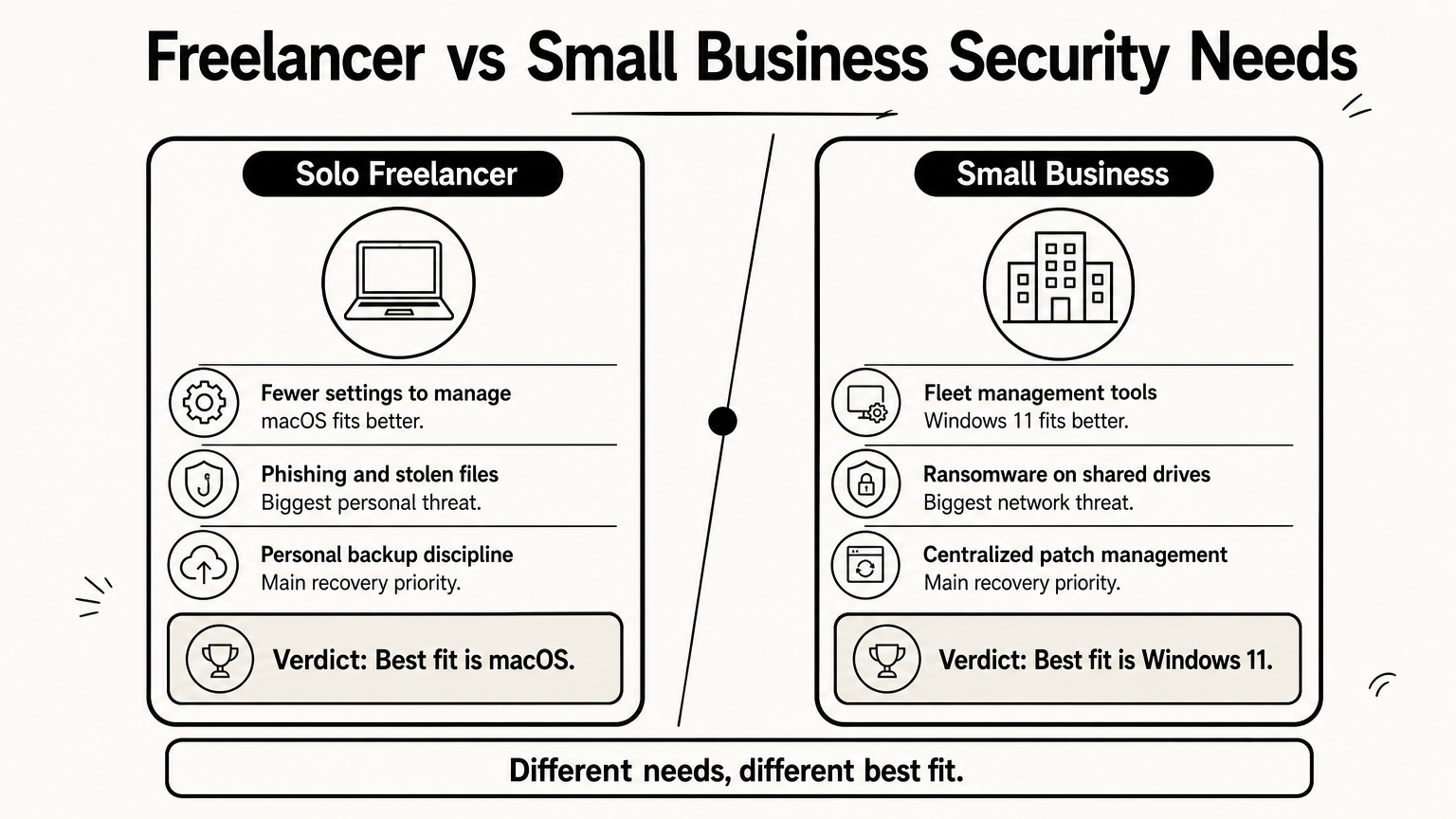
Freelancer risk profile vs business risk profile
Here’s how the two use cases actually diverge once you get past the theory:
| Factor | Solo freelancer | Small business (5+ devices) |
|---|---|---|
| Best-fit OS lean | macOS (fewer settings to manage) | Windows 11 (better fleet management tools) |
| Biggest threat | Phishing, stolen client files | Ransomware across shared network drives |
| Management need | Minimal, personal responsibility | Centralized policy, patch management |
| Recovery priority | Personal backup discipline | Business continuity plan, offsite backups |
Where Windows pulls ahead for teams
Windows 11’s advantage for businesses isn’t raw malware protection, it’s manageability at scale. Tools like Microsoft Intune let an owner push BitLocker enforcement, Defender policies, and update schedules to every laptop in the company from one dashboard, something Apple’s equivalent, Jamf or Apple Business Manager, can also do but with a smaller ecosystem of third-party integrations built around it. Enterprise-grade management matters more than any single antivirus feature once you’re responsible for other people’s data, not just your own.
Where macOS pulls ahead for solo operators
For a one-person operation, simplicity beats configurability every time. A freelancer juggling client invoices, a photo library, and maybe a crypto wallet benefits more from macOS shipping strong defaults out of the box than from Windows offering deeper customization they’ll never touch. Windows 11 vs macOS security stops being about raw feature counts here and starts being about which platform matches how much time you actually have to babysit your own settings.
Picking the OS that keeps you safest
Neither platform wins outright. macOS gives you stronger defaults with less configuration, which suits freelancers and casual users who won’t touch a settings menu after setup. Windows 11 gives you more control, which suits businesses managing multiple devices and needing centralized policy tools like Intune. The real answer to security windows vs mac isn’t the operating system logo on your laptop lid, it’s whether you actually enable FileVault or BitLocker, keep updates current, and stop reusing passwords across accounts.
Pick the platform that fits how you work, then finish the hardening checklist from this guide instead of assuming the OS handles everything for you. That combination, not brand loyalty, is what actually keeps hackers out.
If you’re still weighing the hardware itself, from price and performance to repairability, read our full breakdown of whether to buy a Mac or a Windows computer before you spend a rupee.