
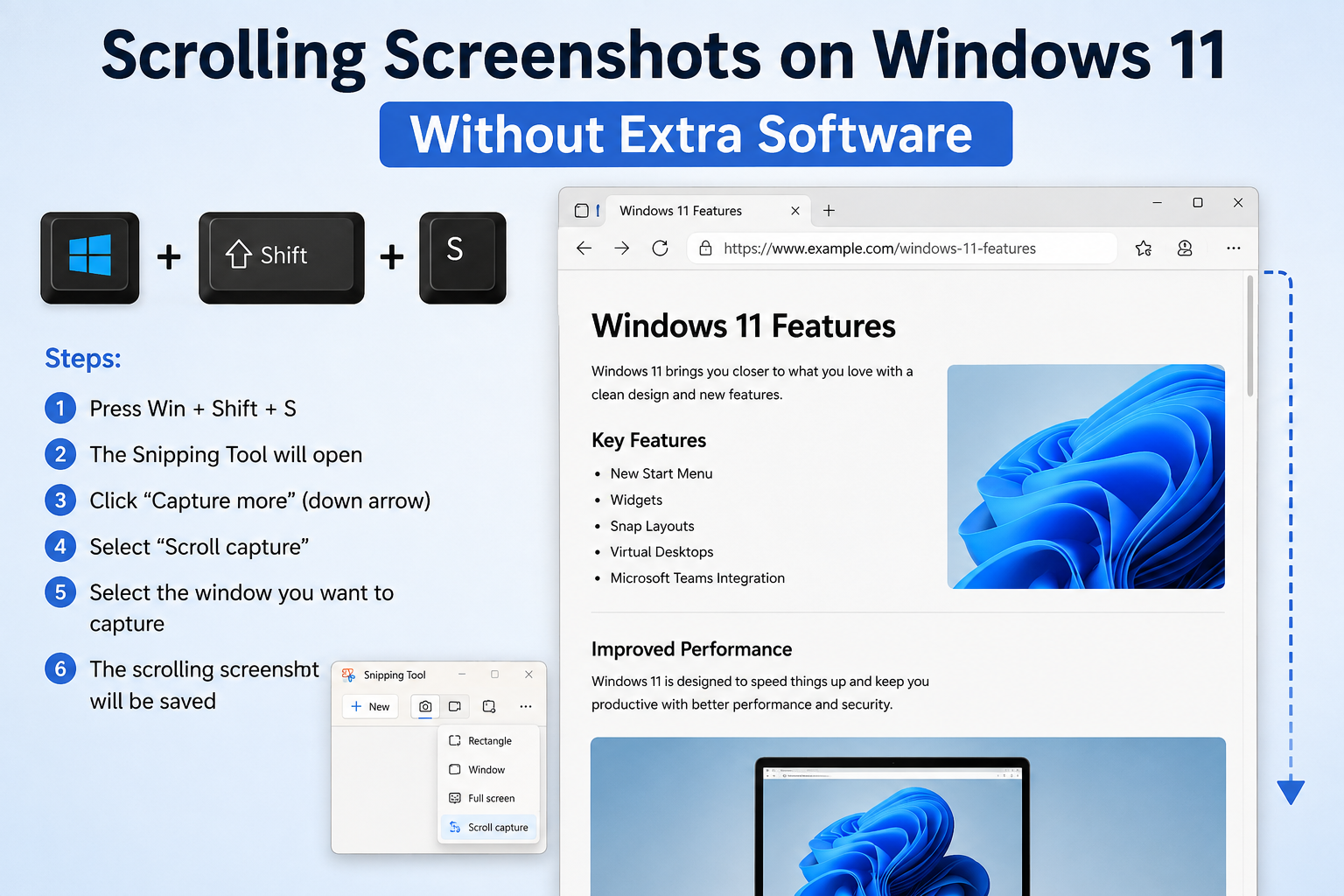
Capturing information from the web is an essential daily task for modern professionals, researchers, and creators. However, standard keyboard shortcuts like PrtScn or default snipping tools only grab what is currently visible on your display. When you need to document a lengthy research article, an endless e-commerce product catalog, or a full legal terms document, taking multiple fragmented screenshots is frustrating and inefficient. Knowing how to take scrolling screenshots on Windows 11 without extra software changes everything by giving you seamless, pixel-perfect captures in seconds.
Installing third-party desktop apps or unverified browser extensions often poses unnecessary security risks, bloats your system resources, and introduces background privacy concerns. Fortunately, Windows 11 and modern web browsers come equipped with powerful built-in screen capture utilities capable of recording entire vertical web pages automatically. In this ultimate guide, we will explore every native technique available in 2026 to capture full-page scrolling screenshots cleanly, quickly, and securely without downloading a single extra program.
Why Avoid Third-Party Screenshot Software in 2026?
For years, users relied on browser add-ons or heavy desktop utilities to capture scrolling web pages. While these tools served a purpose, they present several distinct disadvantages in modern computing environments:
- Security and Privacy Risks: Browser extensions that require permission to read and change all your data on websites can potentially capture sensitive form inputs, passwords, or session tokens.
- Performance Overhead: Running background utility apps consumes RAM and processor cycles, slowing down your Windows 11 system unnecessarily.
- Watermarks and Paywalls: Many free screenshot tools insert intrusive watermarks or limit high-resolution exports behind expensive monthly subscriptions.
- System Stability: Unoptimized software can crash unexpectedly during high-resolution page rendering, resulting in lost work.
By leveraging native tools built into Windows 11 and trusted web browsers, you guarantee maximum cybersecurity, retain full control over your data, and enjoy fast, native performance.
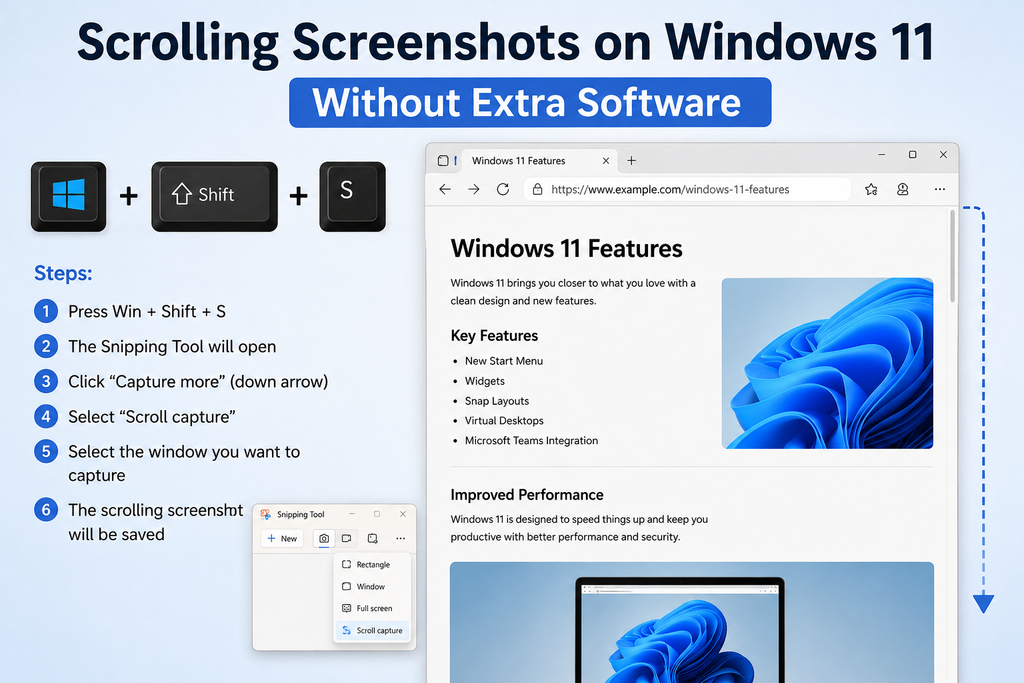
Method 1: Using Microsoft Edge Built-in Web Capture
Microsoft Edge is the default browser integrated into Windows 11, and it features one of the most robust scrolling screenshot capabilities available anywhere. Built directly into the Chromium platform, Edge’s Web Capture tool allows you to grab full web pages without opening developer menus or installing extra extensions.
Step-by-Step Edge Full Page Capture Guide
- Launch Microsoft Edge: Open Edge on your Windows 11 computer and navigate to the webpage you wish to capture completely.
- Trigger the Web Capture Shortcut: Press Ctrl + Shift + S on your keyboard. Alternatively, click the three-dot menu icon in the top-right corner of Edge and select Web capture.
- Select Capture Full Page: A sleek overlay menu will appear at the top of your screen. Click the option labeled Capture full page.
- Review and Annotate: Edge will instantly scroll through the entire webpage in the background and display the captured image in a preview window. You can use the built-in pen tool to draw, highlight text, or erase annotations.
- Save or Copy: Click the Save button (floppy disk icon) to download the capture as a high-resolution JPEG file directly to your Downloads folder, or click Copy to paste it straight into your document or messaging app.
To explore more native features integrated into your default operating system browser, consult the official Microsoft Edge Support documentation for updated keyboard shortcuts and workspace integration updates.
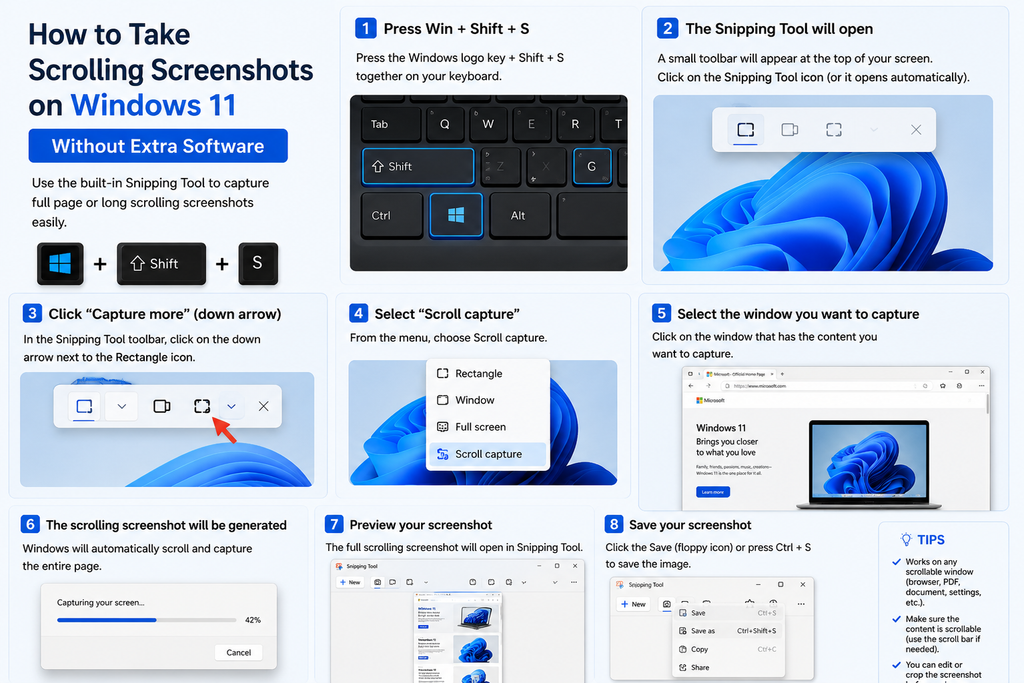
Method 2: Google Chrome Developer Tools Command Menu
Google Chrome remains the world’s most widely used web browser, yet millions of users are unaware that Chrome contains a powerful native scrolling screenshot engine hidden inside its developer suite. You do not need to be a programmer to use this feature; it takes only a few keystrokes.
How to Capture Full Size Screenshots in Google Chrome
- Open Your Webpage: Navigate to the target web page inside Google Chrome.
- Open Developer Tools: Press Ctrl + Shift + I (or press F12) to open the Chrome DevTools panel on the right or bottom of your browser window.
- Open the Command Menu: With DevTools open, press Ctrl + Shift + P to launch the executable command palette.
- Run the Capture Command: In the text bar that appears, type
full size screenshot. - Select and Download: Highlight Capture full size screenshot from the dropdown list and press Enter. Chrome will automatically render the page from top to bottom and download a PNG file directly to your computer.
This method captures the full vertical height of the document, including elements that extend below the fold. For technical documentation and web design debugging, learning Chrome DevTools commands provides unparalleled clarity. You can review full developer guidelines at the Chrome DevTools Documentation portal.
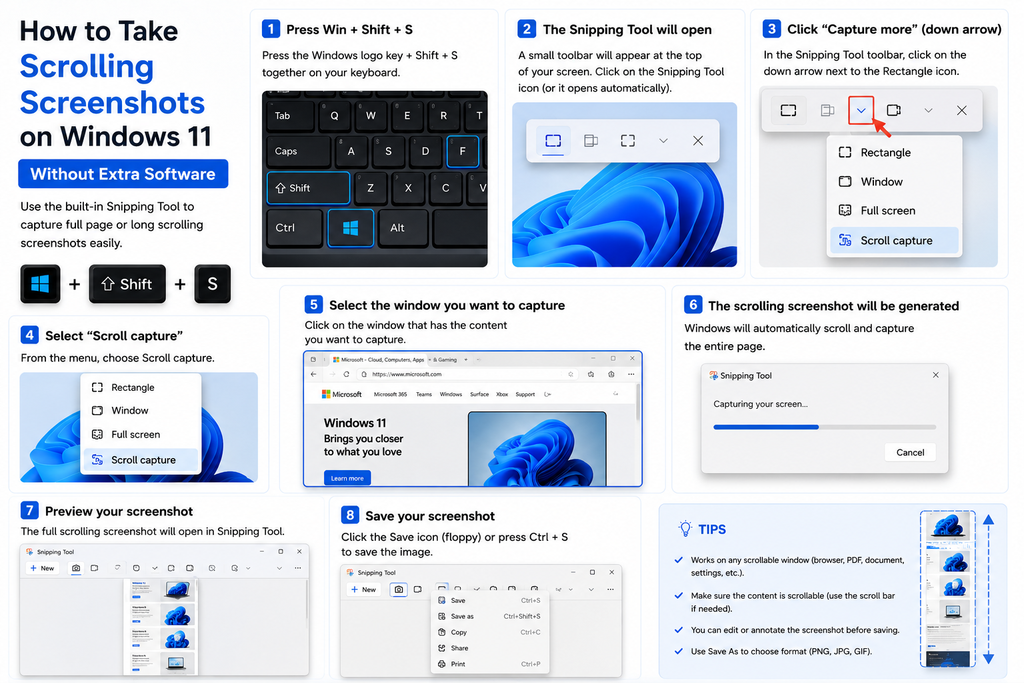
Method 3: Mozilla Firefox Native Full Page Screenshot Tool
Mozilla Firefox offers an intuitive native screenshot feature that requires virtually zero setup. It provides dedicated options for capturing visible areas as well as complete vertical pages with high clarity.
Taking Scrolling Screenshots in Firefox
- Right-Click Context Menu: Right-click anywhere on an open webpage in Firefox (on an empty space away from links or images).
- Select Take Screenshot: Click on Take Screenshot from the context menu. (You can also press Ctrl + Shift + S).
- Choose Save Full Page: Look at the top-right corner of the overlay screen and click Save full page.
- Download Your Capture: Firefox renders the entire page length instantly. Click Download to save the high-res image or Copy to hold it in your clipboard.
Firefox handles dynamic page loading smoothly, making it ideal for blogs, digital magazines, and news outlets. Check the Mozilla Developer Network for deeper insights into web layout standards and rendering tech.
Method 4: Windows 11 Snipping Tool & Native Shortcuts
Windows 11 introduced significant upgrades to the legacy Snipping Tool, including video recording and screen delay capabilities. While the Snipping Tool itself does not currently offer an automatic automated vertical page auto-scroll trigger for arbitrary application windows, combining Windows 11 shortcut workflows with native browser rendering yields complete flexibility.
Combining Web Printing to PDF for Infinite Vertical Views
When you need a single document containing an entire webpage without page breaks or horizontal clipping, converting a page using the system’s native PDF engine is an unbeatable technique:
- Press Ctrl + P on any web page to open the native print dialog box.
- Set the destination printer to Save as PDF or Microsoft Print to PDF.
- Under More Settings, uncheck Headers and footers and check Background graphics to ensure a clean visual presentation.
- Click Save to generate a smooth, infinite-scrolling document file.
PDF versions of full webpages preserve hyperlinked text, selectable typography, and vector imagery, making them superior for professional archiving and business documentation.
Troubleshooting Common Scrolling Screenshot Issues
While native browser utilities work flawlessly on standard websites, modern web architecture occasionally introduces rendering challenges. Here is how to fix common scrolling capture glitches in 2026:
1. Sticky Headers and Fixed Navbars Overlapping
Many modern websites use persistent navigation bars that remain fixed at the top of the screen as you scroll. When taking a full-page screenshot, these elements can sometimes repeat continuously down the image.
- Quick Fix: Before triggering the screenshot command in Chrome or Edge DevTools, right-click the sticky header, select Inspect, and press Delete on your keyboard to temporarily remove the header element from the rendered DOM.
2. Lazy-Loaded Images and Infinite Scroll Feeds
Websites like Pinterest, LinkedIn, or Twitter load images dynamically as you scroll down the page. If you trigger a full-page capture immediately, unloaded image placeholders may appear blank.
- Quick Fix: Scroll manually from the top of the page to the bottom before executing your full-page screenshot command. This forces all media assets and lazy-loaded elements to trigger and buffer completely into browser memory.
3. Dynamic Popups and Overlay Banners
Cookie consent banners, newsletter subscription popups, and discount overlays can block underlying web content during full-page captures.
- Quick Fix: Dismiss or close all popup windows before taking your screenshot. Alternatively, use browser reader mode (F9 in Edge) to clean the layout into a pure, text-focused reading view.
Optimizing Your Productivity and Automated Workflows
Capturing information quickly is only the first step in building an efficient digital routine. Integrating full-page webpage captures into broader documentation and workflow automation systems elevates your everyday productivity.
For instance, if you regularly collect web content for business research or email digests, you can link your desktop organization strategy with an automated daily inbox triaging system to maintain a zero-clutter digital environment. Similarly, executives who manage high-volume reporting can incorporate captured web analytics directly into a hands-free executive KPI briefing workflow guide for rapid decision-making.
If you prefer organizing your meeting notes alongside web captures in centralized knowledge hubs, explore our guide on building a zero-touch meeting assistant using Notion and ChatGPT to structure your ideas effortlessly.
Comparing Built-in Screenshot Methods on Windows 11
| Method | Browser / Tool | Key Advantage | Best Used For |
|---|---|---|---|
| Web Capture (Ctrl+Shift+S) | Microsoft Edge | Built-in annotation tools & instant preview | Quick markups, web articles, informal sharing |
| DevTools Command | Google Chrome / Edge | Exact high-resolution pixel layout rendering | Technical documentation, web design reviews |
| Right-Click Take Screenshot | Mozilla Firefox | Extremely easy context menu access | Fast full-page saving without shortcuts |
| Print to PDF (Ctrl+P) | All Browsers | Preserves active links & selectable text | Legal archiving, professional research reports |
Conclusion: Master Scrolling Screenshots on Windows 11 Today
Knowing how to take scrolling screenshots of entire webpages on Windows 11 without extra software is a game-changing skill for modern web users. By relying on native features integrated into Microsoft Edge, Google Chrome, and Mozilla Firefox, you avoid software bloat, maintain complete data privacy, and generate ultra-high-definition captures in seconds.
Whether you choose the swift convenience of Edge’s Web Capture, the pixel precision of Chrome’s DevTools command palette, or the flexibility of PDF generation, you no longer need third-party apps or paid browser add-ons. Start using these built-in Windows 11 shortcuts today to streamline your digital workflow and capture the web with complete confidence.
Frequently Asked Questions (FAQs)
Can I take a scrolling screenshot on Windows 11 without downloading third-party software?
Yes! You can take full-page scrolling screenshots using built-in features in Microsoft Edge (Ctrl + Shift + S), Google Chrome DevTools (Ctrl + Shift + P -> Capture full size screenshot), or Mozilla Firefox (right-click -> Take Screenshot -> Save full page).
What is the fastest keyboard shortcut for taking a full-page screenshot in Microsoft Edge?
The fastest keyboard shortcut in Microsoft Edge is Ctrl + Shift + S. This opens the Web Capture menu where you can click ‘Capture full page’ to immediately grab the entire vertical length of the webpage.
How do I take a full-page screenshot in Google Chrome without an extension?
Open Google Chrome, press Ctrl + Shift + I to open Developer Tools, then press Ctrl + Shift + P to launch the Command Menu. Type ‘full size screenshot’ and hit Enter. Chrome will instantly render and download a full-length PNG image.
Does the Windows 11 Snipping Tool support auto-scrolling screenshots?
As of 2026, the native Windows 11 Snipping Tool supports screen selection, rectangular snips, and screen recording, but it does not feature an automated auto-scrolling trigger for web pages. Built-in web browser capture utilities are recommended for full-page screenshots.
Why does my full-page screenshot show repeating navigation bars?
Sticky or fixed navigation headers on modern websites can repeat when rendered in scrolling captures. To fix this, right-click the sticky header, select ‘Inspect’ in DevTools, and press the Delete key to temporarily remove the header before capturing.
4 thoughts on “Scrolling Screenshots on Windows 11 Without Extra Software”
Comments are closed.