
Switching between macOS and Microsoft Windows is a daily reality for millions of digital professionals, software engineers, designers, and content creators. However, nothing halts your creative momentum faster than muscle memory failure. If you regularly toggle between operating systems, mastering Mac vs. Windows 11 Screenshot Shortcuts is essential for maintaining high productivity in 2026.
Capturing your screen is no longer just about taking static pictures of text. Modern workflows demand instant screen recordings, annotation tools, text recognition, and cloud synchronization. In this comprehensive guide, we unpack every screen capture hotkey, built-in utility, and hidden workflow trick across both platforms.
The Core Battle: Mac vs. Windows 11 Screenshot Shortcuts Overview
Both Apple and Microsoft have refined their native screen capture ecosystems significantly. While macOS relies on a deeply integrated set of global hotkeys, Windows 11 centers its capture experience around the unified Snipping Tool app and dedicated keyboard triggers.
Essential Native Mac Screenshot Key Combinations
macOS offers robust, intuitive screen capture hotkeys out of the box. These hotkeys require no third-party software and work universally across all Apple Silicon Macs running modern macOS builds:
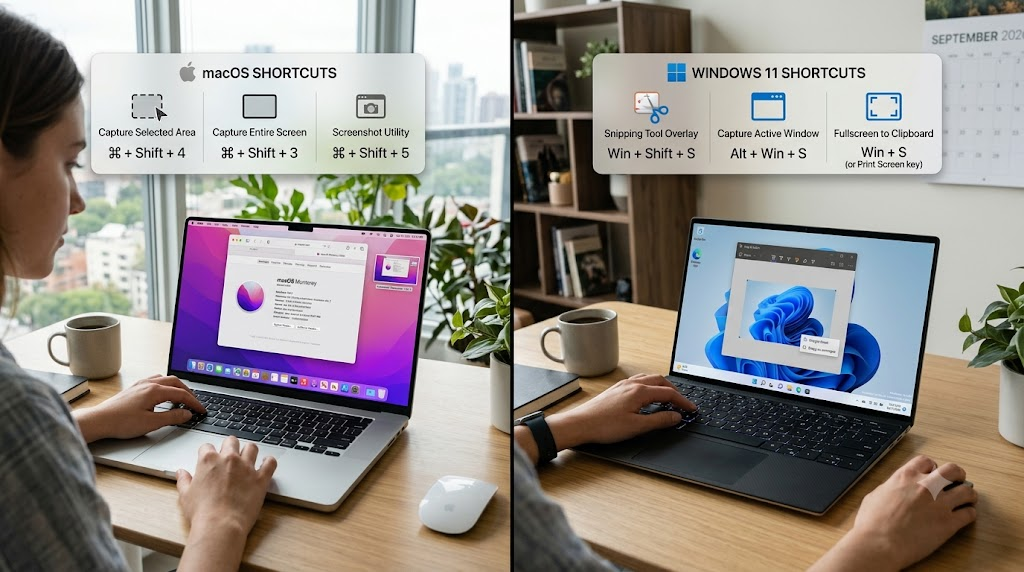
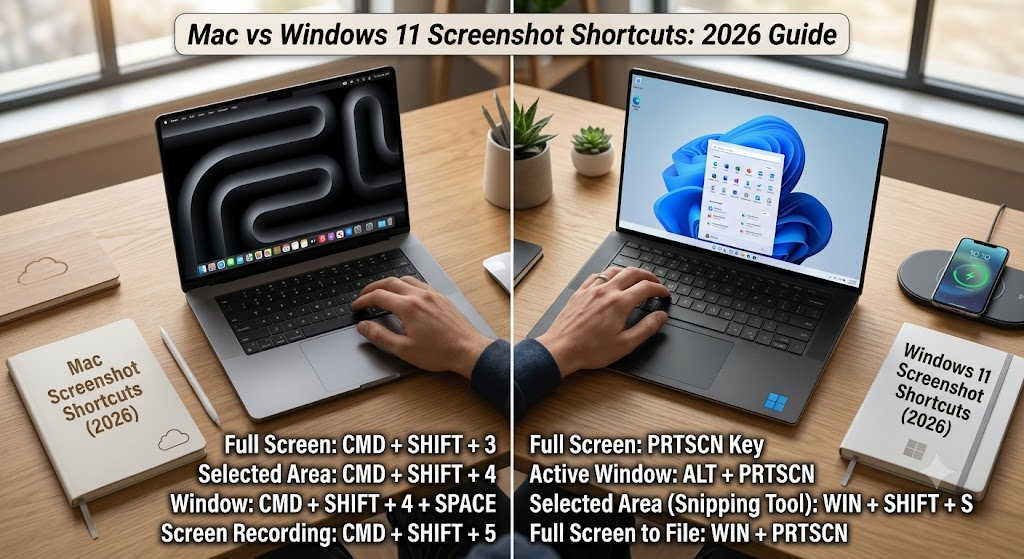
- Command + Shift + 3: Captures your entire screen immediately and saves the image to your desktop or default location.
- Command + Shift + 4: Converts your cursor into a crosshair, allowing you to select a flexible rectangular area. Pressing the Spacebar after this shortcut transforms the crosshair into a camera icon to capture an isolated window with clean drop shadows.
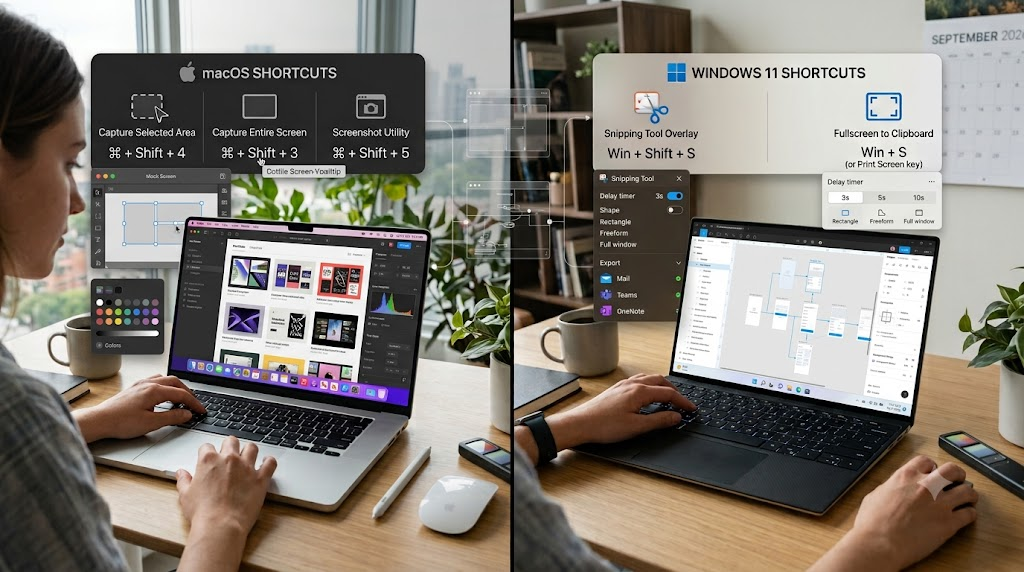
- Command + Shift + 5: Launches the comprehensive macOS Screenshot and Screen Recording control bar. From here, you can select capture modes, configure timers, show mouse clicks, and choose destination folders.
- Command + Shift + 6: Captures the Touch Bar (for supported legacy MacBook Pro models).
- Control Modifier: Adding the Control key to any combination (e.g., Command + Control + Shift + 4) copies the screen capture directly to your clipboard without saving a local file.
Essential Native Windows 11 Screenshot Key Combinations
Windows 11 has modernized its keyboard shortcuts to provide instant utility through the refreshed Snipping Tool and Xbox Game Bar integration:
- Windows Key + Shift + S: The primary tool for power users. It dims the screen and activates the Snipping Tool overlay, letting you choose between Rectangular, Freeform, Window, or Fullscreen snips.
- Print Screen (PrtScn): In Windows 11, pressing PrtScn opens the modern Snipping Tool bar by default.
- Windows Key + Print Screen: Takes an instant fullscreen snapshot and saves it directly to your
Pictures > Screenshotsfolder while briefly dimming the screen. - Windows Key + Alt + Print Screen: Takes a full-screen snapshot specifically via the Xbox Game Bar, saving it to your Captures folder.
- Windows Key + V: Opens your Clipboard History, enabling you to manage and paste multiple recently captured screenshots effortlessly.
Deep Dive: Mac vs. Windows 11 Screenshot Shortcuts and Utility Comparison
Understanding hotkeys is only half the equation. Understanding how each operating system processes, annotates, and routes captured images determines your actual operational speed.
1. Area Selection and Precision Controls
When executing precise regional screen captures, macOS provides detailed pixel coordinates near the crosshair. Holding down the Shift key locks horizontal or vertical movement, while holding Option shrinks or expands the capture box symmetrically from the center.
Conversely, Windows 11 excels in shape versatility. The Snipping Tool overlay natively includes a Freeform Snip mode, allowing users to draw custom lasso shapes around complex UI elements. Furthermore, if you need to capture screenshots without traditional hardware buttons, check out our guide on how to take screenshots on Windows 11 without Print Screen key.
2. Screen Recording and OCR Capabilities
Both operating systems now seamlessly integrate video capture and Optical Character Recognition (OCR) directly into their screen capture tools:
- macOS Screen Recording: Activated via
Command + Shift + 5, allowing video recording of selected screen areas or full displays with custom audio inputs. Live Text integration allows users to highlight, copy, or translate text directly from any static image frame. - Windows 11 Video Snipping & Text Actions: Snipping Tool includes a full screen-recording tab. Furthermore, its built-in Text Actions feature instantly extracts selectable text from captured screenshots, making copying code snippets or quotes seamless.
3. Extended & Scrolling Screen Captures
A long-standing headache for cross-platform power users is capturing full webpage documents or scrolling chat threads. macOS does not natively support scrolling screenshots via standard keyboard shortcuts, requiring third-party tools or browser developer tools.
On Windows 11, while the native Snipping Tool continues to improve, native scrolling capture remains limited without third-party utilities or Microsoft Edge developer extensions. To overcome these platform limitations smoothly, read our technical tutorial on capturing scrolling screenshots on Windows 11 without extra software.
Cross-Platform Productivity Workflows & Cloud Synchronization
For cross-platform workers, managing screen capture file clutter across multiple computers is a critical workflow challenge. Modern productivity setups require automatic cloud syncing and instant clipboard sharing.
Automating Image Backups with OneDrive and iCloud
Windows 11 users can configure automatic screenshot saving directly to cloud storage. When enabled, hitting PrtScn automatically creates an organized, cloud-backed archive of your captures across all logged-in machines. For step-by-step instructions on setting this up, explore our complete guide to save and sync Windows 11 screenshots to OneDrive (2026).
On macOS, navigating to Command + Shift + 5 > Options allows you to set the default save target directly to an iCloud Drive folder. Any screenshot captured on your Mac then immediately syncs across your iPhone and iPad via Apple’s Universal Clipboard.
Cross-Platform Keyboard Mapping for Seamless Context Switching
If you regularly move between a MacBook keyboard and a Windows mechanical keyboard, muscular confusion with Command vs. Control vs. Windows Key is inevitable. Here is how to harmonize your experience:
- Remap Windows Keys: Use Microsoft PowerToys to remap
Alt + Shift + 4to triggerWin + Shift + S, mirroring the Mac shortcut layout on your PC. - Remap Mac Keys: Navigate to
System Settings > Keyboard > Keyboard Shortcuts > Modifier Keysto align Command and Control locations with PC layouts when using external hardware. - Standardize Clipboard Memory: Enable Windows Clipboard History (
Win + V) and use Mac tools like Paste or Maccy to maintain a consistent multi-item paste buffer.
Comparative Summary: Mac vs. Windows 11 Screen Capture Capabilities
To help you choose the best platform workflow for your setup, here is a breakdown comparing the native performance of both environments:
- Global Fullscreen Capture: Mac uses
Cmd + Shift + 3; Windows 11 usesWin + PrtScnorPrtScn. - Selective Area Capture: Mac uses
Cmd + Shift + 4; Windows 11 usesWin + Shift + S. - Built-in OCR Text Extraction: Both platforms natively support direct text copy from screenshots (macOS Live Text vs. Windows Snipping Tool Text Actions).
- Clipboard Direct Save: Mac requires adding the
Controlkey; Windows 11 automatically updates system clipboard memory viaWin + Shift + S. - Official Documentation: For authoritative source details, review official guides from Apple Support and Microsoft Support.
Mastering Mac vs. Windows 11 Screenshot Shortcuts in 2026
Becoming fluent in Mac vs. Windows 11 Screenshot Shortcuts is one of the highest-yield habits you can develop for cross-platform efficiency. Whether you are leveraging Apple’s precise drop-shadow window captures or taking advantage of Windows 11’s instant OCR text extraction, committing these core shortcuts to muscle memory will save hours every week.
Configure your cloud backup locations, map your custom hotkeys, and stop letting context-switching slow down your daily operating workflow.
Frequently Asked Questions (FAQs)
What is the primary Mac equivalent to Windows Shift S?
The direct macOS equivalent to Windows Key + Shift + S is Command + Shift + 4 for selective rectangular captures, or Command + Shift + 5 for the comprehensive screenshot and video recording toolbar.
Where do Mac and Windows 11 screenshots get saved by default?
By default, macOS saves screenshots directly to your Desktop. On Windows 11, pressing Win + PrtScn saves files directly to Pictures > Screenshots, whereas Win + Shift + S saves the image directly to your clipboard.
How do I extract text from screenshots on Mac vs Windows 11?
On macOS, open the image in Preview or Quick Look and use Live Text to highlight and copy text. On Windows 11, open the captured screenshot in Snipping Tool and click the ‘Text Actions’ button to OCR and copy text.
Can I remap screenshot hotkeys on both Mac and Windows 11?
Yes. On macOS, go to System Settings > Keyboard > Keyboard Shortcuts > Screenshots. On Windows 11, use Microsoft PowerToys Keyboard Manager or Accessibility settings to rebind keys.
3 thoughts on “Mac vs Windows 11 Screenshot Shortcuts: 2026 Guide”
Comments are closed.