
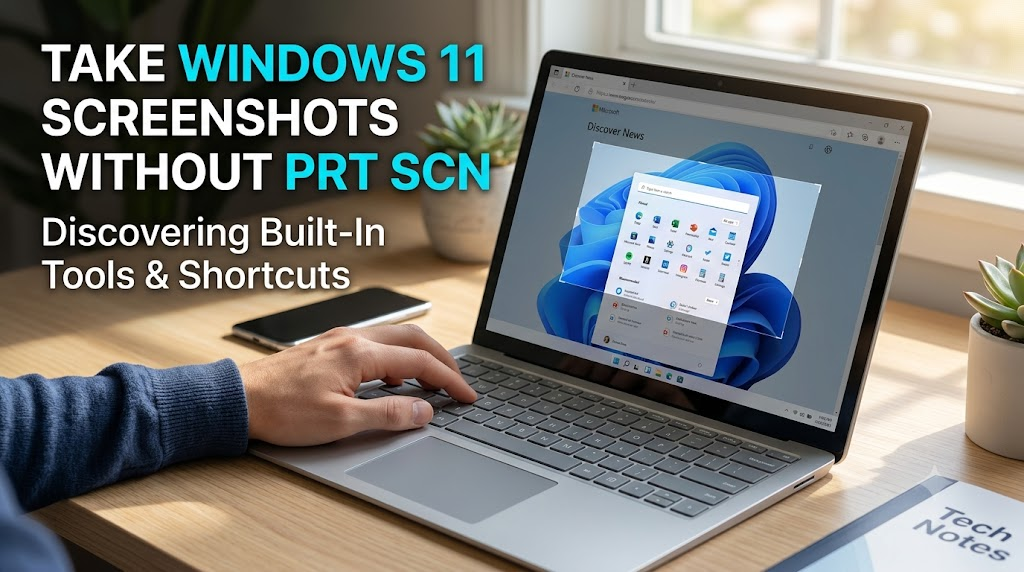
Modern laptops and compact keyboards are sleeker than ever, but they frequently eliminate traditional keys. If you recently bought an ultrabook, a 60% mechanical keyboard, or a compact wireless peripheral, you may have noticed that the standard Print Screen (PrtScn) key is missing entirely. Learning how to Take Screenshots on Windows 11 Without Print Screen Key hardware buttons is an essential skill for staying productive in 2026.
Whether you need to capture a quick receipt, send a quick snippet of code, or save visual proof during online meetings, Windows 11 provides several powerful built-in tools. You do not need a dedicated PrtScn button to capture high-resolution imagery on your PC.
In this comprehensive guide, we will explore five simple, reliable alternative methods to capture your display seamlessly on Windows 11. We will also cover automatic saving tricks, keyboard remapping techniques, and advanced annotation tools.
1. The Snipping Tool Shortcut (Win + Shift + S)
The primary and most intuitive method to replace the legacy Print Screen key on Windows 11 is the Snipping Tool keyboard shortcut. Microsoft has built this feature directly into the operating system core, making it lightning-fast and extremely versatile.
How to Trigger the Overlay
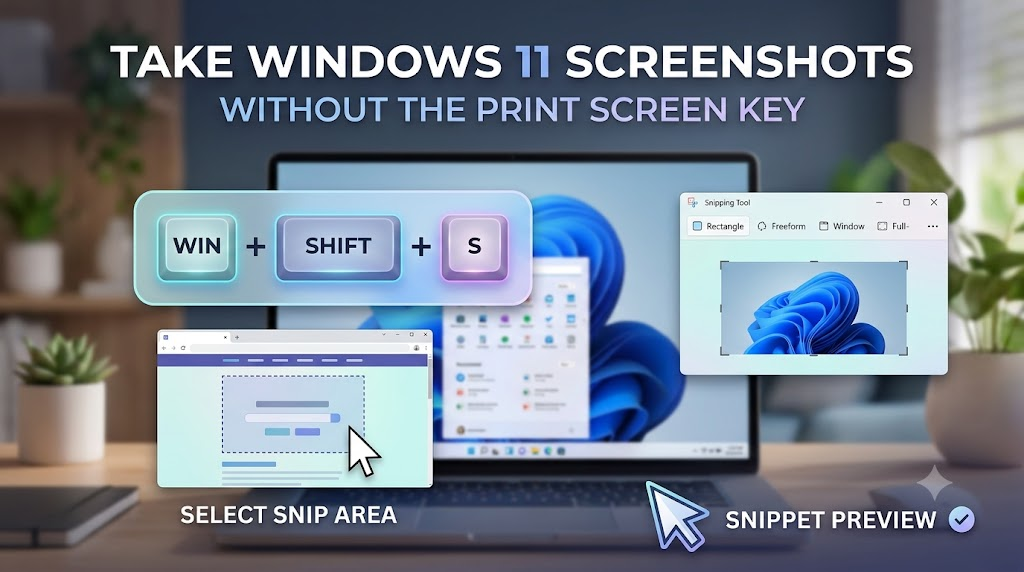
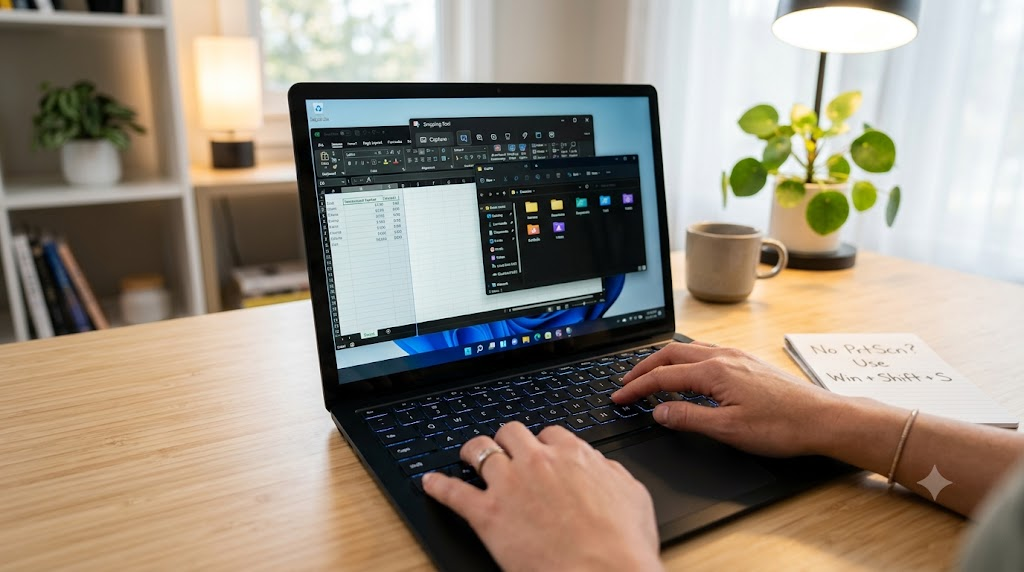
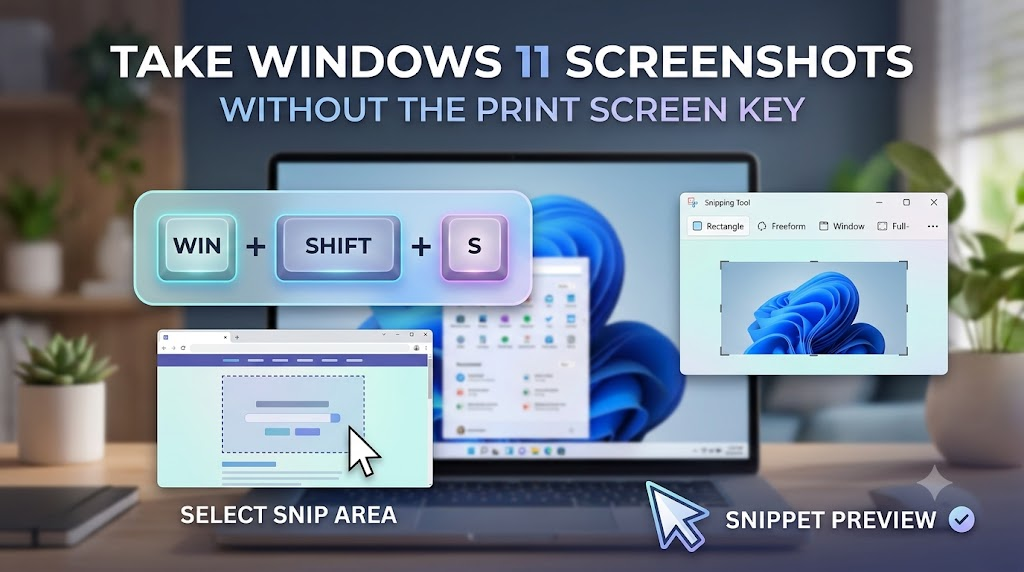
To launch the screen capture overlay instantly, press Windows Key + Shift + S on your physical keyboard. Your screen will dim immediately, and a small toolbar will appear centered at the top of your display.
This toolbar offers four distinct capture modes:
- Rectangular Snip: Click and drag your mouse cursor to draw a box around any specific screen area.
- Freeform Snip: Draw any irregular shape around the exact content you wish to capture.
- Window Snip: Click on any active window to capture that application screen exclusively without background clutter.
- Full-screen Snip: Instantaneously capture your entire display across all connected monitors.
Where Your Screenshot Goes
Once you select an area, your image automatically copies to your active clipboard. A rich thumbnail preview notification appears in the bottom-right corner of your display.
Clicking this notification opens the updated Windows 11 Snipping Tool app. Here, you can annotate with highlighters, cropping tools, shape generators, and built-in optical character recognition (OCR) text extraction.
If you prefer quick workflow automation similar to how you automate daily inbox triaging, you can immediately paste your clipboard image directly into Slack, Microsoft Teams, or email bodies using Ctrl + V.
2. Xbox Game Bar Overlay (Win + G or Win + Alt + PrtScn Alternatives)
For gamers, content creators, and power users, the Xbox Game Bar serves as a robust screen capture utility that functions across almost all applications on Windows 11.
Accessing Game Bar Controls
You can summon the Xbox Game Bar overlay at any point by pressing Windows Key + G. If you want to bypass the overlay menu and take a direct full-screen snapshot, use the dedicated hotkey combination Windows Key + Alt + Instant Screen Capture.
If your device lacks a physical PrtScn button, opening the Xbox Game Bar overlay using Windows Key + G provides a dedicated visual button. Click the camera icon in the upper-left Capture widget to snap an immediate full-screen capture.
Automatic File Saving Location
Unlike standard clipboard copy tools, Game Bar automatically writes your image files directly to your internal storage drive. You do not need to manually save the image file in an editor.
Your image files are instantly organized in your primary storage system at:
C:\Users\[YourUsername]\Videos\CapturesThis automated file preservation makes Game Bar ideal when capturing sequential evidence, gaming achievements, or document backups without interrupting your primary focus.
3. The Built-in On-Screen Keyboard (OSK)
If your physical keyboard lacks a Print Screen key and your hardware shortcut keys are malfunctioning, Windows 11 includes a fully functional virtual software keyboard.
How to Launch the On-Screen Keyboard
You can open the touch and pointer software keyboard within seconds using multiple methods:
- Press Windows Key + Ctrl + O to toggle the On-Screen Keyboard instantly.
- Open your Start Menu, search for On-Screen Keyboard, and hit Enter.
- Navigate to Settings > Accessibility > Keyboard and switch on On-Screen Keyboard.
Taking Screenshots via OSK
Once the virtual keyboard pops up over your active desktop window, you will see a prominent PrtScn key on the right-hand panel of the virtual layout.
Clicking the virtual PrtScn button captures your active desktop directly to your clipboard. If you press Windows Key on your physical keyboard while clicking PrtScn on the virtual display, Windows 11 automatically saves a PNG file inside your Pictures\Screenshots directory.
This emergency fallback ensures you are never stranded without screen capture capabilities, even on highly minimized custom keyboards or tablet hybrids.
4. Remapping Keys with Microsoft PowerToys
For a permanent solution tailored to your personal ergonomics, you can remap any unused key or function button on your keyboard to act as a native screen capture button.
Installing Microsoft PowerToys
Microsoft PowerToys is a free, official open-source utility suite that unlocks advanced customization features on Windows 11. You can download PowerToys directly from the official Microsoft Store or GitHub release channels.
For further technical documentation on system customization, check out the official Microsoft Snipping Tool documentation to understand native system triggers.
Configuring Keyboard Manager
Once installed, follow these steps to turn any physical key into a single-tap screenshot button:
- Launch Microsoft PowerToys from your system tray or Start Menu.
- Select Keyboard Manager from the left sidebar navigation menu.
- Click Remap a Key.
- In the physical key selection box, pick an underutilized key (such as F12, Pause/Break, or Right Alt).
- In the destination mapping box, assign the shortcut combination: Win + Shift + S.
- Click OK to confirm your changes.
Now, hitting your selected single key immediately triggers the modern Snipping Tool selection crosshairs without holding multi-key combinations.
5. Third-Party Screen Capture Utilities (ShareX and Greenshot)
If you require advanced workflow automation, automated cloud uploads, image stitching, or pixelation tools, robust third-party alternatives easily replace legacy keyboard functions.
ShareX: The Open-Source Powerhouse
ShareX is arguably the most feature-complete screenshot utility available for Windows. It allows users to bind flexible custom shortcuts to any global hotkey combination.
Key advantages of ShareX include:
- Automated Uploads: Direct image hosting upload to Imgur, Dropbox, Google Drive, or custom FTP servers.
- Screen Recording: Built-in GIF and MP4 video capture toggles.
- Custom Hotkeys: Easily assign screen captures to Ctrl + F1 or mouse thumb buttons.
Greenshot: Lightweight and Efficient
For users who prefer simplicity, Greenshot offers a lightweight background process that replaces traditional key behaviors seamlessly.
It provides an intuitive quick-editor tool right after capture, letting you obfuscate sensitive personal data, draw numbered callouts, or send direct screen captures to enterprise productivity suites like Slack or Microsoft Outlook.
Integrating these utilities into your routine fits right alongside modern desk productivity setups, much like deploying zero-touch meeting assistant workflows to streamline administrative duties.
Bonus Method: Capturing Full Scrolling Webpages
Standard full-screen image captures often fail when attempting to save long web pages, PDF documents, or lengthy chat logs that require vertical scrolling.
While traditional key combinations capture visible viewports only, Windows 11 supports scrolling screen captures via browser developer tools or dedicated utilities. If you want to capture entire online pages in a single uninterrupted file, learn how to capture scrolling screenshots on Windows 11 without installing untrusted browser plugins.
Understanding historical hardware evolution, such as reading about the history of the Print Screen key, shows how modern OS software overlays have entirely superseded physical hardware buttons.
Method Comparison Matrix for Windows 11
Below is a quick reference table comparing all five alternatives to help you pick the best tool for your immediate workflow:
| Method | Keyboard Trigger | Auto-Saves File? | Built-In Annotations? | Ideal Use Case |
|---|---|---|---|---|
| Snipping Tool | Win + Shift + S | Optional | Yes (High) | Daily precise captures |
| Xbox Game Bar | Win + G / Win + Alt + PrtScn | Yes (Videos/Captures) | No | Full-screen gaming & video |
| On-Screen Keyboard | Virtual Button (Win + Ctrl + O) | Yes (with Win key) | No | Tablet mode / broken key |
| PowerToys Remap | Custom Single Key | Configurable | Yes | Ergonomic power users |
| ShareX / Greenshot | Customizable Hotkeys | Yes (Automated) | Yes (Advanced) | Power workflows & cloud |
Summary & Best Practices
Not having a hardware Print Screen button on your modern laptop or compact keyboard is no longer a productivity bottleneck. Windows 11 offers versatile built-in options that outperform traditional hardware keys.
For most users, adopting Win + Shift + S provides the quickest, cleanest experience. Power users can leverage Microsoft PowerToys key remapping or ShareX for automation.
By utilizing these native alternative methods, you can easily Take Screenshots on Windows 11 Without Print Screen Key limitations and keep your workplace documentation moving smoothly in 2026.
Frequently Asked Questions (FAQs)
How do I take a screenshot on Windows 11 without the Print Screen key?
The easiest alternative is using the built-in shortcut Windows Key + Shift + S. This opens the Snipping Tool overlay, allowing you to select rectangular, freeform, window, or full-screen captures directly to your clipboard.
Where are my screenshots saved on Windows 11?
Screenshots taken with Windows + Shift + S are stored in your clipboard. If you click the toast notification, you can save them anywhere. Screenshots captured via Xbox Game Bar auto-save in Videos/Captures, while Win + PrtScn combinations auto-save in Pictures/Screenshots.
Can I remap another key to function as the Print Screen key?
Yes. Using Microsoft PowerToys (a free official Microsoft utility), you can use the Keyboard Manager feature to remap any physical key (such as F12 or Right Alt) to trigger the Windows + Shift + S shortcut automatically.
How do I capture a screenshot on a 60% mechanical keyboard?
60% keyboards often omit the PrtScn key. You can press Fn + combination keys (often Fn + P or Fn + I depending on manufacturer), or simply use the Windows 11 universal shortcut: Windows Key + Shift + S.
How do I capture a scrolling webpage on Windows 11?
Standard screen shortcuts only capture visible areas. You can capture full scrolling pages using browser developer tools (Ctrl + Shift + I in Edge/Chrome) or by using dedicated tools like ShareX.
2 thoughts on “Take Screenshots on Windows 11 Without Print Screen Key”
Comments are closed.