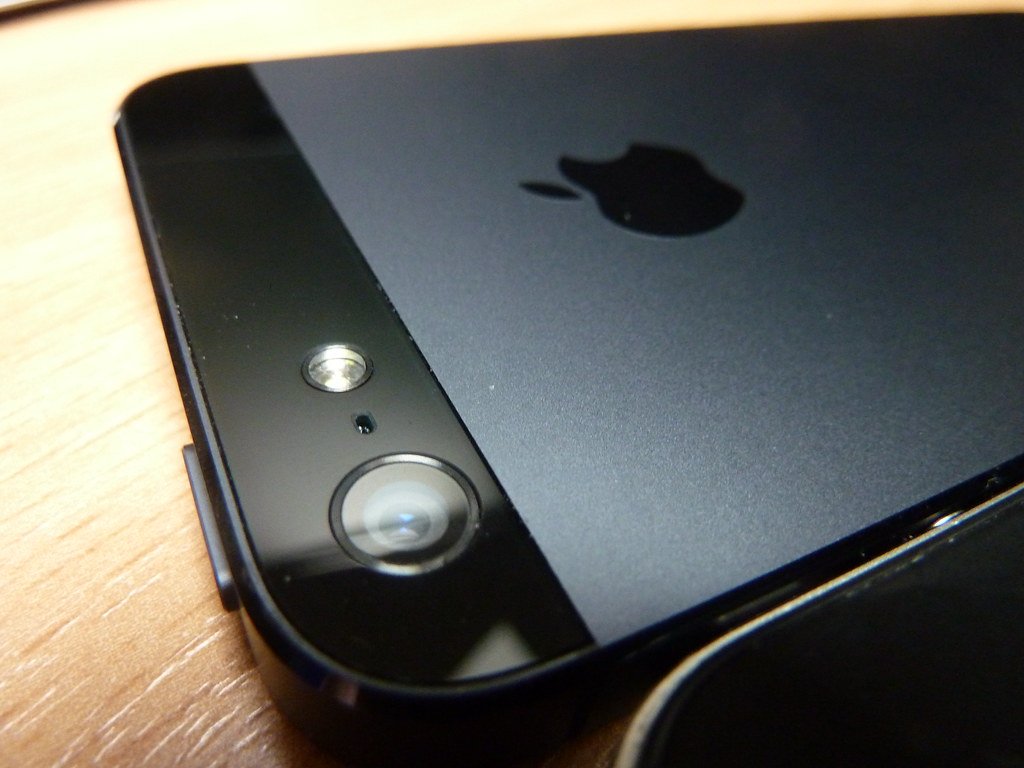
Understanding the Boot Loop: Why Your Device is Stuck
You wake up, excited to use your new device, only to find it frozen on that iconic white apple logo. It is a frustrating scenario, especially after a major software rollout. How to Fix iPhone 16 and 17 Stuck on Apple Logo After iOS 18 Update (Zero Data Loss) is the number one concern for high-end users who cannot afford to lose their data. When an update fails to finalize, the kernel panic or a corrupt system partition can trap the device in a reboot loop.
While this issue feels catastrophic, it is often a software handshake failure rather than a hardware catastrophe. Before you panic, remember that your data is likely still encrypted on the flash storage; we just need to nudge the iOS environment into booting correctly.
The Science Behind the iOS 18 Update Glitch
iOS 18 introduced massive changes to system architecture, particularly in how it handles background process integrity. Occasionally, during the installation phase, a interrupted power state or a transient file error during the ‘optimization’ stage leaves the system in a state of limbo. This is why it is critical to address the iPhone 16 and 17 stuck on Apple logo error with surgical precision.
Step-by-Step Recovery: How to Fix iPhone 16 and 17 Stuck on Apple Logo After iOS 18 Update (Zero Data Loss)
The most effective, non-destructive method involves a forced restart followed by a targeted system refresh. Do not jump to ‘Restore’ in iTunes yet, as that will wipe your device. Instead, use a ‘Update’ command through Recovery Mode, which reinstalls the firmware without deleting your personal files.
- Force Restart: Quickly press and release Volume Up, press and release Volume Down, then hold the Power button until you see the Apple logo and beyond until the recovery screen appears.
- Enter Recovery Mode: Connect your device to a computer. Launch the latest version of Finder (macOS) or iTunes (Windows).
- Choose ‘Update’: When prompted by the system, select ‘Update’ instead of ‘Restore’. This tells the device to reinstall iOS while keeping your user data directory intact.
If you are managing high-level assets or complex financial workflows, ensuring your digital environment is secure is as important as fixing your device. For those interested in advanced wealth management, learn more about how to set up an irrevocable asset protection trust to shield high-net-worth wealth.
When Professional Intervention is Required
If the above steps fail, you may have a persistent firmware corruption. You should consult official Apple support documentation. In rare cases, high-performance users might consider hardware diagnostics. Just as you optimize your mental performance with the 2024 science-backed nootropic stack for peak executive function and flow state, keep your hardware optimized by avoiding jailbroken software or beta profiles that introduce instability.

Conclusion: Maintaining System Health
Learning how to fix iPhone 16 and 17 stuck on Apple logo after iOS 18 update (zero data loss) is an essential skill for the modern digital executive. By following these steps—starting with a forced restart and moving to a firmware refresh—you maintain the integrity of your data. Always keep regular backups via iCloud to ensure that even in worst-case scenarios, your digital footprint remains recoverable.