
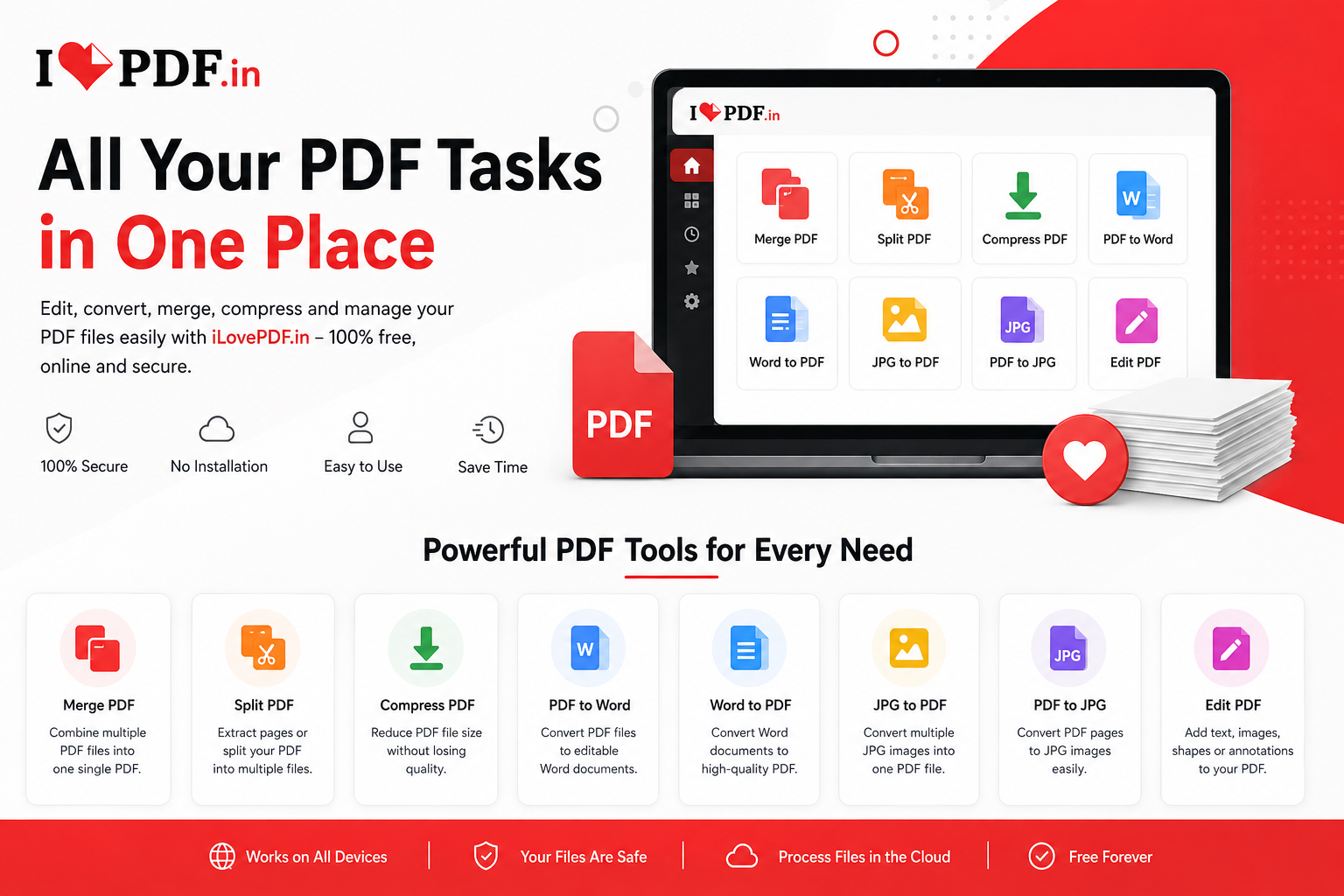
Free Online PDF Tools for Everyday Document Tasks
PDF files are everywhere.
Businesses use them for contracts and invoices, students use them for assignments and study material, professionals use them for reports and presentations, and individuals regularly receive bills, forms, statements, certificates and other documents as PDFs.
The problem begins when you need to change something.
You may need to combine several documents into one PDF, reduce the size of a large file, extract selected pages, convert a PDF into Word, turn images into a PDF or make other changes to a document.
Free online PDF tools for converting, merging, splitting and compressing PDF filesInstead of installing separate software for every task, iLovePDF.in provides online PDF tools designed to make common PDF operations easier from a web browser.
Whether you need to merge PDF files, split a PDF, compress PDF documents, convert PDF to Word, convert JPG to PDF or manage PDF pages, you can choose the appropriate tool and complete the task through a straightforward workflow.
This guide explains the most useful PDF tools, when to use them and how to choose the right operation for your document.
What Are Online PDF Tools?
Online PDF tools are browser-based utilities that help users perform operations on PDF documents without relying on traditional desktop PDF software for every task.
Depending on the tool, you can perform tasks such as:
- Merge multiple PDFs
- Split PDF pages
- Compress large PDF files
- Convert PDF to Word
- Convert Word to PDF
- Convert PDF pages to images
- Convert JPG images to PDF
- Organize PDF pages
- Rotate PDF pages
- Add page numbers
- Add watermarks
- Sign PDF documents
- Edit supported PDF content
- Protect PDF files
- Unlock eligible PDF documents
The exact workflow depends on the operation you choose.
For many common tasks, the process is simply:
Choose a PDF tool → Upload your document → Select the required options → Process the file → Download the result
This makes browser-based PDF tools useful when you want to complete a specific document task without navigating complicated desktop software.
Why Use iLovePDF.in?
iLovePDF.in is designed around a simple idea:
Choose the document task you need and get directly to the tool.
Rather than forcing users through a complicated document-management application, individual tools can be provided for individual tasks.
For example, if your only goal is to make a PDF smaller, you can go directly to the Compress PDF tool.
If you need to combine files, use Merge PDF.
If you need an editable Word document, choose PDF to Word.
This task-focused approach is particularly useful for people who work with documents occasionally and don’t want to learn complicated professional PDF software.
Most Useful Online PDF Tools
Let’s look at some of the most common PDF operations and when you might need them.
1. Merge PDF Files
Sometimes one document is spread across several PDF files.
For example, you may have:
- Cover page
- Application form
- Identification document
- Supporting documents
- Certificates
Instead of sending five separate attachments, you can combine them into one PDF.
A Merge PDF tool allows multiple PDF files to be arranged and combined into a single document.
When should you merge PDFs?
PDF merging can be useful for:
Business documents
Combine proposals, reports, invoices or supporting documents.
Job applications
Combine your résumé, cover letter and supporting certificates.
School and university work
Join assignments, research material or scanned pages.
Administrative documents
Combine multiple related forms into one document.
Typical merge workflow
- Open the Merge PDF tool.
- Select multiple PDF files.
- Arrange them in the required order.
- Start the merge operation.
- Download the combined PDF.
Before processing the files, check their order carefully.
If your cover page needs to appear first, for example, make sure it is placed before the remaining documents.
2. Split PDF Files
The opposite of merging is splitting.
Suppose you have a 100-page PDF but only need pages 20–30.
Sending the entire document may be unnecessary.
A Split PDF tool can help separate selected pages or ranges from a larger PDF.
Common uses for splitting PDFs
You might split a PDF when you need to:
- Extract one chapter from a document
- Separate invoices
- Extract specific pages
- Divide a large report
- Create smaller documents
- Remove unrelated sections from a copy
- Separate scanned documents
Example
Imagine your PDF contains:
Pages 1–5: Introduction
Pages 6–20: Report
Pages 21–25: Appendix
If you only need the report, you can create a new PDF containing pages 6–20.
That gives you a smaller and more focused document.
3. Compress PDF Files
Large PDF files can be inconvenient.
You may encounter upload limits when submitting documents through:
- Government portals
- Job applications
- School portals
- Customer-support systems
- Cloud platforms
- Business applications
A Compress PDF tool attempts to reduce the document’s file size while keeping the PDF usable.
Why are some PDFs so large?
A PDF can become large because it contains:
- High-resolution photographs
- Scanned pages
- Large embedded images
- Complex graphics
- Many pages
- Embedded resources
Scanned documents are particularly likely to become large because each page may effectively contain a high-resolution image.
When should you compress a PDF?
Compression can help when:
- An attachment exceeds an email limit
- A website has a maximum upload size
- You want faster file transfers
- You want to reduce storage requirements
- A large PDF is inconvenient to share
Important quality consideration
Higher compression can sometimes result in lower image quality.
For text-heavy documents, this may be less noticeable.
For portfolios, photographs, technical drawings or image-heavy PDFs, review the compressed output before distributing it.
4. Convert PDF to Word
One of the most frequently needed PDF conversions is PDF to Word.
PDF is excellent for preserving document presentation, but it is not always convenient when substantial editing is required.
A Word document is generally easier to modify.
A PDF to Word converter can therefore be useful when you need to continue editing content from an existing PDF.
Common PDF to Word uses
Examples include:
- Editing reports
- Updating old documents
- Reusing document content
- Modifying letters
- Editing business documents
- Working with educational material
Why PDF-to-Word conversion isn’t always perfect
PDF and Word are fundamentally different formats.
PDF primarily describes how content should appear on a page.
Word documents contain editable document structures such as paragraphs, tables and formatting.
As a result, complex PDF layouts may not always convert perfectly.
Documents containing:
- Multiple columns
- Complex tables
- Unusual fonts
- Scanned text
- Graphics
- Forms
may require some formatting adjustments after conversion.
Always review the resulting Word file before using it as a final document.
5. Convert Word to PDF
Sometimes you need to go in the other direction.
You’ve finished editing a Microsoft Word document and want a format that’s convenient for sharing while preserving its intended appearance.
This is where Word to PDF conversion becomes useful.
PDF is commonly used for distributing:
- Résumés
- Reports
- Letters
- Assignments
- Invoices
- Business proposals
- Guides
- Manuals
Converting the final document to PDF can make it easier to share a consistent version with other people.
6. Convert JPG to PDF
Phones and cameras make it easy to capture documents as images.
But receiving ten individual JPG images isn’t always convenient.
A JPG to PDF converter lets you combine images into a PDF document.
JPG to PDF is useful for:
- Scanned receipts
- Notes
- Certificates
- Homework
- Forms
- Photographed documents
- ID copies
- Product documentation
For example, if you photograph five pages of notes, you can arrange those images in the correct order and convert them into a single PDF.
This produces one document instead of several separate image files.
7. Convert PDF to JPG
Sometimes you don’t need the PDF itself—you need an image of a page.
A PDF to JPG tool can convert PDF pages into image files.
This can be useful when you want to:
- Create a preview
- Share a particular page as an image
- Use PDF content in a presentation
- Create visual references
- Extract page-based images for permitted use
- View a page in software that doesn’t conveniently support PDF
If the document contains several pages, make sure you know whether you want one particular page or images for every page.
8. Organize PDF Pages
A PDF may contain all the right content but in the wrong order.
An Organize PDF tool can help you manage page arrangement.
Depending on the available options, page organization may include:
- Reordering pages
- Removing unwanted pages
- Rotating pages
- Selecting pages
- Rearranging scanned documents
Example
Suppose a scanned document is ordered:
Page 1 → Page 3 → Page 2 → Page 4
Instead of scanning everything again, you can rearrange the pages into:
Page 1 → Page 2 → Page 3 → Page 4
and create the corrected document.
9. Rotate PDF Pages
Scanned documents sometimes contain pages in the wrong orientation.
One page may be upside down while another is sideways.
A PDF rotation tool lets you correct page orientation without recreating the entire document.
This is particularly useful for:
- Scanned forms
- Receipts
- Books
- Notes
- Mixed-orientation documents
Always review every page after rotation before downloading the final file.
10. Edit PDF Online
Editing a PDF can mean several different things.
Depending on the document and the editing features available, an online PDF editor may allow you to work with elements such as:
- Text
- Images
- Shapes
- Annotations
- Signatures
- Additional page elements
PDF editing can be more complicated than editing a Word document because many PDFs were created primarily for fixed presentation rather than continuous editing.
For extensive rewriting, converting the document into an editable format may sometimes be more practical.
For smaller modifications, a dedicated PDF editor may be the faster choice.
11. Sign PDF Documents
Digital document workflows increasingly require signatures without printing a document first.
A Sign PDF tool can help place a signature onto a PDF document.
Depending on the available signing features, users may be able to:
- Type a signature
- Draw a signature
- Upload a signature image
- Add initials
- Position a signature on a page
- Resize the signature
This can be convenient for routine document workflows.
However, adding a visual signature to a PDF is not necessarily the same thing as applying a cryptographic digital signature. Legal and compliance requirements vary by document type and jurisdiction, so use the signing method required for your specific transaction.
12. Add Page Numbers to PDF
Page numbers become especially useful in long documents.
They make reports, manuals, study material and business documents easier to reference.
Instead of manually editing every page, a page-numbering tool can automate the process.
Page numbers are particularly helpful for:
- Reports
- E-books
- Research papers
- Manuals
- Contracts
- Training material
- Business documents
13. Add a Watermark to PDF
A watermark can display identifying text or imagery across document pages.
Common examples include:
CONFIDENTIAL
DRAFT
SAMPLE
or a company identifier.
Watermarks can help communicate a document’s status or source.
They should not, however, be treated as a complete security mechanism for sensitive information.
14. Protect a PDF
Some PDF workflows allow documents to be protected using a password.
This can provide an additional access-control layer when sharing certain files.
When using password protection:
- Choose a strong password
- Avoid easily guessed information
- Share the password separately where appropriate
- Store the password securely
If you forget a strong document password, recovering access may not be possible.
Which PDF Tool Should You Use?
Use this quick guide:
| Your Goal | Recommended Tool |
|---|---|
| Combine multiple PDFs | Merge PDF |
| Extract selected pages | Split PDF |
| Reduce PDF file size | Compress PDF |
| Edit PDF content | Edit PDF |
| Make PDF content editable in Word | PDF to Word |
| Create PDF from Word | Word to PDF |
| Convert images into a document | JPG to PDF |
| Convert PDF pages into images | PDF to JPG |
| Rearrange PDF pages | Organize PDF |
| Fix sideways pages | Rotate PDF |
| Add a signature | Sign PDF |
| Add numbering | Page Numbers |
| Mark document status | Watermark PDF |
| Add password protection | Protect PDF |
How to Choose the Correct PDF Workflow
You don’t always need the most complicated PDF tool.
Start by identifying your final goal.
“My PDF is too large.”
Use:
Compress PDF
“I have five PDFs and want one file.”
Use:
Merge PDF
“I only need three pages from this document.”
Use:
Split PDF
“I want to edit the document extensively.”
Consider:
PDF to Word
“I need to make a few supported changes directly on the PDF.”
Use:
Edit PDF
“I photographed several pages with my phone.”
Use:
JPG to PDF
“I need an image version of a PDF page.”
Use:
PDF to JPG
Choosing the correct tool at the beginning saves unnecessary conversions and helps preserve document quality.
PDF vs Word: What’s the Difference?
PDF and Word documents are designed for different purposes.
PDF is useful when document appearance and distribution matter.
Common advantages include:
- Consistent page-based presentation
- Convenient document sharing
- Broad device support
- Good format for final documents
Word
Word documents are better suited to active editing.
They are useful when you need to:
- Rewrite paragraphs
- Change formatting
- Add sections
- Modify tables
- Continue collaborating on a document
A common workflow is:
Create/edit in Word → Convert to PDF → Share the final PDF
If changes are later required:
PDF → Convert to editable format → Make changes → Export to PDF again
How to Keep PDF Quality During Conversion
Document quality matters, particularly when the PDF contains photographs, graphics, tables or carefully formatted text.
Follow these practices whenever possible.
Start with the best source file
Repeated conversions can gradually affect quality or formatting.
If you still have the original Word, PowerPoint or image file, use it whenever practical.
Avoid unnecessary conversion cycles
Try not to repeatedly convert:
PDF → JPG → PDF → Word → PDF
Every transformation introduces another opportunity for layout or image changes.
Check images after compression
Compression may reduce image quality.
Inspect important images before sharing the final document.
Check fonts and formatting
Converted documents can occasionally substitute fonts or change spacing.
Review headings, tables and page breaks.
Keep a copy of the original
Never make your processed copy the only version of an important document.
Keep the original until you’ve confirmed that the new document is correct.
Tips for Working With Scanned PDFs
Scanned PDFs deserve special attention.
A normal digital PDF may contain selectable text.
A scanned PDF may contain page images instead.
This distinction affects what you can do with the document.
For example, converting a digitally generated PDF to Word can be different from converting a scanned page into editable text.
Scanned documents may require Optical Character Recognition (OCR) before the text can be recognized and converted into editable content.
OCR quality can depend on:
- Scan resolution
- Image sharpness
- Language
- Font
- Page orientation
- Handwriting
- Background noise
- Contrast
For better results, start with clear, straight and high-quality scans.
Common PDF Problems and How to Solve Them
PDF is too large to upload
Try compressing the PDF.
If the document contains unnecessary pages, remove those pages before compression.
Multiple PDFs need to be submitted as one file
Merge them.
Arrange the files in the correct sequence before processing.
Only a few pages are needed
Split or extract the relevant pages rather than sharing the complete document.
PDF text needs major editing
Convert the PDF to an editable format such as Word when appropriate.
Scanned PDF text cannot be selected
The document may contain images rather than actual text.
OCR may be required.
PDF page is sideways
Rotate the affected page.
PDF pages are in the wrong order
Use the page organization tool to rearrange them.
Images need to become one document
Arrange the images and convert JPG to PDF.
PDF Tips for Students
Students regularly work with PDF files for:
- Assignments
- Lecture notes
- Research papers
- Books
- Application forms
- Project reports
A few simple workflows can save significant time.
Combine assignment pages
If an assignment consists of several scans, convert or merge them into one properly ordered PDF before submission.
Compress before uploading
School portals sometimes restrict file sizes.
If the document exceeds the allowed size, compress it before submission while checking that text remains readable.
Use descriptive filenames
Instead of:
document-final-new2.pdf
consider:
economics-assignment-john-smith.pdf
Clear filenames make documents easier to identify.
PDF Tips for Businesses
Businesses often deal with large numbers of documents.
Common examples include:
- Invoices
- Contracts
- Reports
- Proposals
- Receipts
- Purchase orders
- Application forms
A consistent PDF workflow can improve organization.
Keep source and final files separate
Maintain editable source files separately from final PDFs.
Use consistent filenames
For example:
invoice-2026-001.pdf
is easier to manage than:
scan123.pdf
Verify documents before sending
Before sharing a PDF, check:
- Correct recipient document
- Correct page order
- No accidental blank pages
- Appropriate filename
- Required signatures
- Correct final version
This simple review can prevent avoidable mistakes.
PDF Tips for Mobile Users
Many PDF tasks now begin on a smartphone.
You might photograph a receipt, download a form or receive a document through email or messaging apps.
When working on mobile:
- Use clear scans
- Keep the phone steady when photographing documents
- Check page orientation
- Review filenames
- Confirm upload completion before processing
- Download the result before closing the browser
- Store important final documents in a secure location
Browser-based PDF tools can be particularly convenient on mobile because they reduce dependence on installing a separate application for every small document task.
Is an Online PDF Tool Better Than Desktop Software?
Neither option is universally better.
The right choice depends on your needs.
Online PDF tools are convenient when:
- You need a quick operation
- You don’t want to install software
- You’re using a shared or temporary device
- You’re working from a phone or tablet
- You only occasionally need PDF tools
Desktop software may be preferable when:
- You work with PDFs continuously
- You require specialized professional features
- You have strict offline requirements
- You manage highly specialized document workflows
- Your organization requires locally managed software
Choose the workflow that matches the sensitivity and complexity of the document you’re processing.
Frequently Asked Questions
What is iLovePDF.in?
iLovePDF.in is an online PDF tools website designed to help users perform common document operations such as converting, merging, splitting, compressing and managing PDF files through a web browser.
Can I merge multiple PDF files?
Yes. A Merge PDF tool is designed to combine multiple PDF documents into a single PDF. Arrange your documents in the required order before processing them.
How can I make a PDF smaller?
Use a PDF compression tool. Compression attempts to reduce file size while maintaining usable document quality. Results depend on the contents of the original PDF.
How do I convert PDF to Word?
Choose the PDF to Word tool, upload the PDF, start the conversion and download the resulting file. Complex layouts and scanned documents may require additional review or OCR.
Can I convert JPG images into a PDF?
Yes. A JPG to PDF tool can turn one or more supported images into a PDF document. Arrange the images in the desired page order before conversion.
How do I combine scanned pages into one PDF?
If your scans are images, convert them to PDF and arrange them in order. If each scan is already a PDF, use Merge PDF.
Why does my converted Word document look different from the PDF?
PDF and Word represent document layouts differently. Complex tables, fonts, columns, images and scanned pages can affect conversion accuracy.
What is OCR?
OCR stands for Optical Character Recognition. It is technology used to recognize text contained inside images or scanned documents and make that information machine-readable.
Can I split one PDF into several files?
A PDF splitting tool can separate pages or selected page ranges from a larger document. The available splitting options depend on the tool implementation.
Does compressing a PDF reduce quality?
It can. The result depends on the compression method and the contents of the PDF. Image-heavy PDFs are generally more likely to show visible changes after aggressive compression.
Should I keep my original PDF?
Yes. Keep an original copy of important files until you have checked the processed version and confirmed that all pages, text, images and formatting are correct.
Can I use online PDF tools on a phone?
Browser-based PDF tools can generally be used from supported mobile browsers when the website and individual tool support the device. The exact experience may depend on the browser, file size and operation.
Make PDF Tasks Simpler with iLovePDF.in
Working with PDFs shouldn’t require a complicated workflow every time you need to make a simple change.
Whether you’re preparing an assignment, organizing business documents, reducing an attachment size, converting a file or combining several documents, choosing the right PDF tool can make the process significantly easier.
With iLovePDF.in, users can access dedicated tools for common PDF tasks from one place.
Choose the operation you need:
Merge PDF when several documents need to become one.
Split PDF when you only need selected pages.
Compress PDF when the file is too large.
PDF to Word when you need editable content.
JPG to PDF when images need to become a document.
PDF to JPG when PDF pages need to become images.
Edit PDF when you need supported changes directly on the document.
Start with the tool that matches your task, review the processed document carefully and keep the original file whenever the document is important.
Explore iLovePDF.in PDF tools and choose the tool that matches your next document task.
Recommended Internal Links
Add contextual internal links from this article to the actual live tool pages rather than placing every link in one block.
Recommended anchor text:
- Merge PDF
- Split PDF
- Compress PDF
- PDF to Word
- Word to PDF
- JPG to PDF
- PDF to JPG
- Edit PDF
- Sign PDF
- Organize PDF
- Rotate PDF
- Protect PDF
Also link relevant sections to related blog articles as you publish them.
Recommended Image SEO
Featured Image Filename:
free-online-pdf-tools-ilovepdf-in.webp
Featured Image Alt Text:
Free online PDF tools for converting, merging, splitting and compressing PDF files
Suggested article images:
- PDF tools overview
- How to merge PDF files
- How PDF compression works
- PDF to Word conversion
- JPG to PDF workflow
- PDF organization interface
Avoid stuffing keywords into every image alt attribute. Describe what each image actually shows.