
In today’s fast-paced digital workspace, efficiency is everything. Whether you are documenting software bugs, building training manuals, or sharing quick visual updates with remote team members, screenshots serve as the universal language of modern productivity. However, manually saving, renaming, dragging, and dropping image files into cloud storage folders quickly creates unnecessary friction in your daily workflow. Fortunately, Microsoft provides native integration features that allow you to seamlessly Save and Sync Windows 11 Screenshots to OneDrive automatically without installing bloated third-party software.
By configuring Windows 11 alongside Microsoft OneDrive, every press of your screen capture shortcut immediately secures a high-resolution file to the cloud. This automated pipeline ensures your visual assets are instantly backed up, organized, and accessible across all your paired devices including iPhones, Android devices, and secondary laptops. If you frequently capture images without dedicated hardware buttons, you can also learn how to take screenshots on Windows 11 without Print Screen key to streamline your capture methods before automating cloud storage.
Why Automating Screenshot Cloud Syncing Matters in 2026
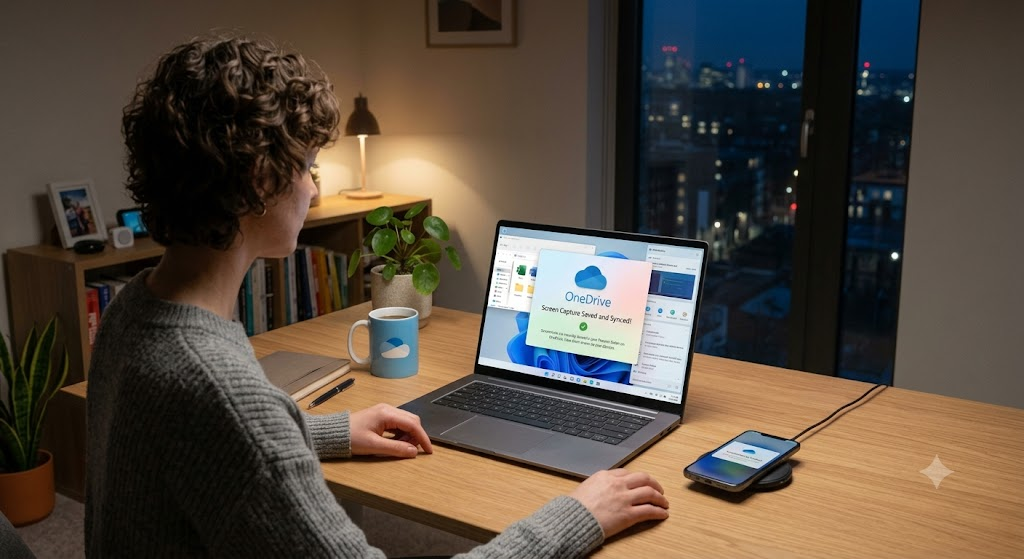
The transition toward distributed teams, hybrid schedules, and multi-device productivity has made manual file transfers obsolete. When you configure automated cloud syncing for your captures, you eliminate repetitive administrative tasks and safeguard vital visual information against unexpected system crashes or hardware failures.
Beyond standard data redundancy, automated syncing provides immediate accessibility. When you take a capture on your desktop computer, it instantly becomes available on your smartphone or tablet through the Microsoft OneDrive cloud interface. This enables seamless cross-device sharing during live video calls, client presentations, or emergency troubleshooting sessions.
- Zero Manual Drag-and-Drop: Eliminate the hassle of locating temporary image files and manually transferring them to cloud folders.
- Instant Cross-Device Access: Review, edit, or share captured images instantly from mobile devices or web browsers.
- Ransomware and Hardware Protection: Store critical screen captures safely in encrypted cloud storage protected against drive corruption.
- Streamlined Digital Organization: Maintain a clean, chronological directory automatically curated inside your designated OneDrive folder.
How to Save and Sync Windows 11 Screenshots to OneDrive Automatically
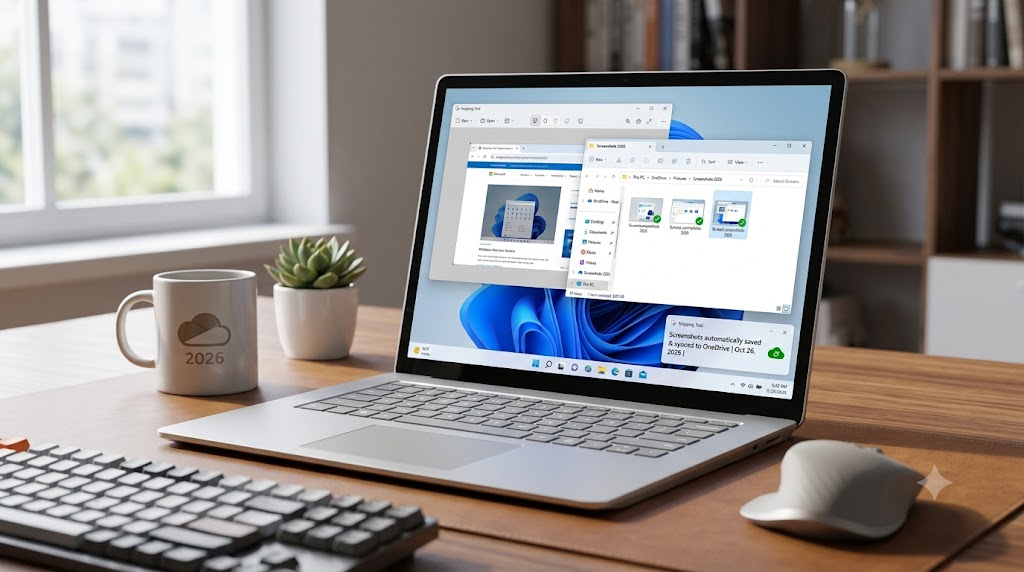
Configuring Windows 11 to route screen captures straight to Microsoft cloud storage takes under two minutes. Follow this comprehensive step-by-step procedure to enable seamless background syncing across your primary workstation.
Step 1: Enable Auto-Save in OneDrive Settings
To begin, ensure your Microsoft account is signed into the native OneDrive application running in your system tray. Click on the OneDrive cloud icon near your taskbar clock, select the gear icon to open Settings, and navigate to the Sync and backup tab. Look for the toggle labeled Save screenshots I capture to OneDrive and switch it to the On position.
Once activated, Windows 11 redirects every full-screen capture created with the classic shortcut keys directly to the designated cloud path: OneDrive/Pictures/Screenshots. You will receive a subtle system notification confirming that your image was successfully saved to the cloud.
Step 2: Configure Snipping Tool Cloud Defaults
Windows 11 includes a rebuilt Snipping Tool app that offers advanced capture modes, including rectangular snips, window captures, and video recording. Open the Snipping Tool app from your Start Menu and click the three dots menu icon in the upper-right corner to open Settings.
Scroll down to the Automatically save screenshots toggle switch and turn it on. Next, verify that the default saving directory points to your active OneDrive synchronized folder. For advanced visual documentation, you can also combine this workflow with techniques for taking scrolling screenshots on Windows 11 without extra software to capture entire web pages directly into cloud storage.
Step 3: Map the Print Screen Key Shortcut
To ensure maximum speed, map your keyboard’s PrtScn key directly to the Windows Snipping Tool overlay. Open your main Windows 11 Settings app (Windows Key + I), navigate to Accessibility, choose Keyboard, and enable the option labeled Use the Print screen button to open screen snipping.
Pro Tip: Using shortcut combinations like Windows Key + Print Screen automatically dims your screen briefly and saves a full display capture straight into your cloud directory without prompting you for a filename or confirmation box.
Advanced Cloud Workflows: Auto-Syncing Beyond OneDrive
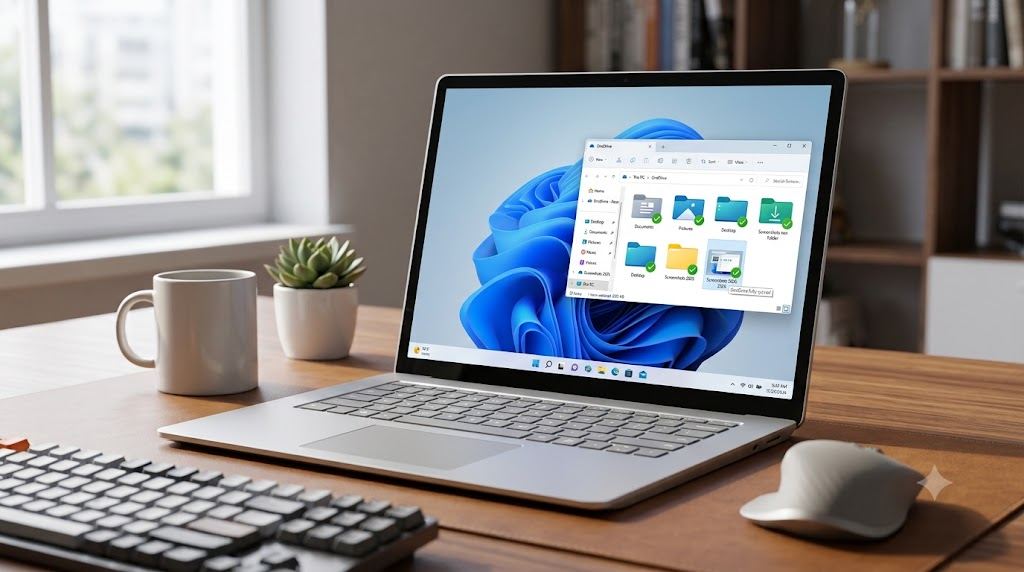
While native OneDrive integration offers the smoothest experience on Microsoft systems, many modern professionals rely on multi-cloud ecosystems involving Google Drive, Dropbox, or custom automation platforms. You can establish similar automated pipelines for these alternate cloud providers using Windows folder redirection or symbol links.
Redirection via Directory Junctions (Symlinks)
If your team mandates Google Drive or Dropbox instead of OneDrive, you can create a symbolic link (junction point) that tricks Windows into auto-syncing your local Pictures folder straight to your preferred cloud client. Open Windows Command Prompt as an Administrator and execute the following directory mapping syntax:
mklink /J "%USERPROFILE%\Pictures\Screenshots" "C:\Users\YourUsername\Google Drive\Screenshots"
This command links your standard operating system screenshot directory directly to your active Google Drive sync folder. Any image generated by native Windows shortcuts immediately uploads through Google Drive desktop software.
Enterprise Automation with Power Automate and Zapier
For enterprise-grade productivity, consider bridging your screenshot repository with corporate communication platforms like Microsoft Teams or Slack. You can create custom automated triggers using Microsoft Power Automate documentation strategies that parse newly uploaded OneDrive screenshots and notify specific channels.
Similar workflow automation concepts are widely utilized across complex operational frameworks. For example, remote teams frequently deploy automated systems such as a zero-touch meeting assistant with Notion, ChatGPT, and Zapier to manage visual meeting notes and captured slides in real time.
Troubleshooting Common Screenshot Sync Issues in Windows 11
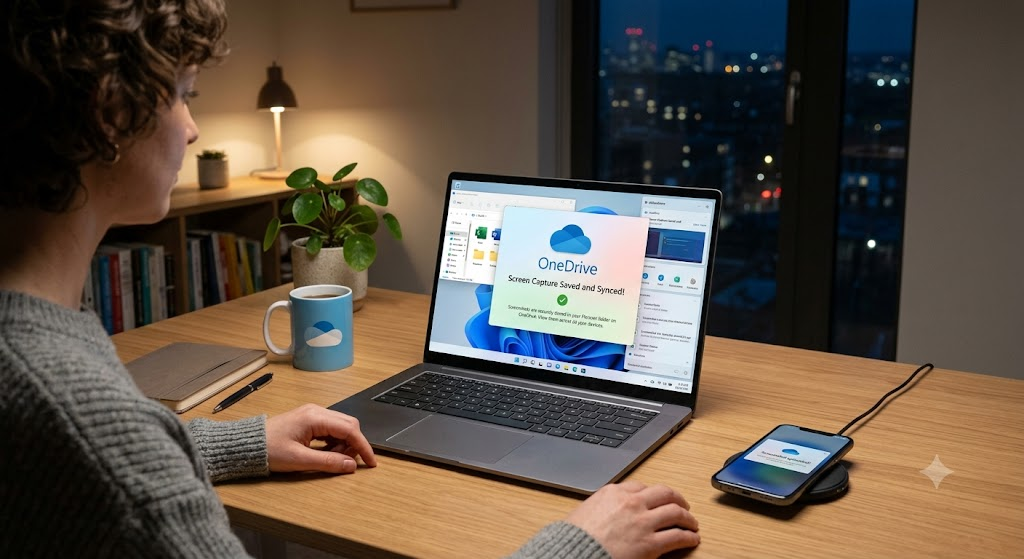
Despite seamless system integration, occasional synchronization hiccups can occur due to storage limits, credential conflicts, or system policy overrides. Below are tested remedies for common sync failures.
OneDrive Sync is Paused or Full
If your captures are not showing up in the cloud, inspect your system tray OneDrive icon. A yellow exclamation mark or red cross indicates a sync error or full storage capacity. Free up space inside your cloud drive or unpause file synchronization to restore immediate background uploads.
Snipping Tool Defaulting to Local Temp Directory
In certain corporate builds of Windows 11, group policies might force Snipping Tool captures into local temporary folders. Open the Snipping Tool application settings, toggle Automatically save screenshots off and back on, and re-select your synced OneDrive path manually under the destination settings.
Folder Permission Overrides
If Windows displays an error stating that the target folder is write-protected, right-click your local Pictures/Screenshots folder, select Properties, choose the Security tab, and verify that your user account possesses full read/write permissions.
Optimizing Your Cloud Storage for Maximum Productivity
Automating your screenshot uploads is a massive productivity win, but without routine organization, your cloud folder can quickly accumulate thousands of unorganized, generic image files. Implementing smart organization habits ensures long-term efficiency.
Set Up Automated File Renaming Rules
By default, Windows labels captures with generic timestamps such as Screenshot 2026-03-30 142010.png. Utilizing power tools or automated renaming scripts can automatically prepend project codes, client names, or tags based on active window titles.
Implement Security and Access Controls
Never store sensitive corporate data, raw passwords, or personal identification information in unencrypted screenshot captures. Always ensure your cloud environment utilizes multi-factor authentication (MFA) and zero-trust folder permissions to keep confidential visual data strictly protected from unauthorized external access.
Conclusion: Master Your Digital Asset Workflow Today
Learning how to Save and Sync Windows 11 Screenshots to OneDrive transforms a mundane administrative headache into an invisible, hyper-efficient background pipeline. By leveraging native cloud automation, configuring your Print Screen keyboard shortcuts, and keeping your image repositories clean, you free up valuable mental bandwidth for high-impact creative tasks. Take control of your Windows 11 workspace today, activate automated cloud sync, and enjoy frictionless cross-device visual asset management throughout 2026 and beyond.
Frequently Asked Questions (FAQs)
How do I make Windows 11 automatically save screenshots to OneDrive?
Open your OneDrive settings from the system tray, navigate to Sync and backup, and turn on the toggle labeled ‘Save screenshots I capture to OneDrive’. Every full capture taken with Windows key shortcuts will instantly save to your OneDrive/Pictures/Screenshots folder.
Where are my synced screenshots stored in OneDrive?
By default, automated screenshots are organized under your primary cloud directory in the following path: OneDrive/Pictures/Screenshots. You can view them on the web or through any connected mobile app.
Can I automatically sync screenshots to Google Drive or Dropbox instead?
Yes, you can establish folder redirection using a Windows symbolic link command in Command Prompt, linking your local Pictures/Screenshots directory straight into your Google Drive or Dropbox desktop sync folder.
Why are my screenshots not uploading to OneDrive automatically?
Common causes include paused OneDrive sync, full cloud storage, or disabled settings in the Snipping Tool app. Check your system tray cloud status and verify that ‘Save screenshots I capture to OneDrive’ is enabled.
1 thought on “Save and Sync Windows 11 Screenshots to OneDrive (2026)”
Comments are closed.