
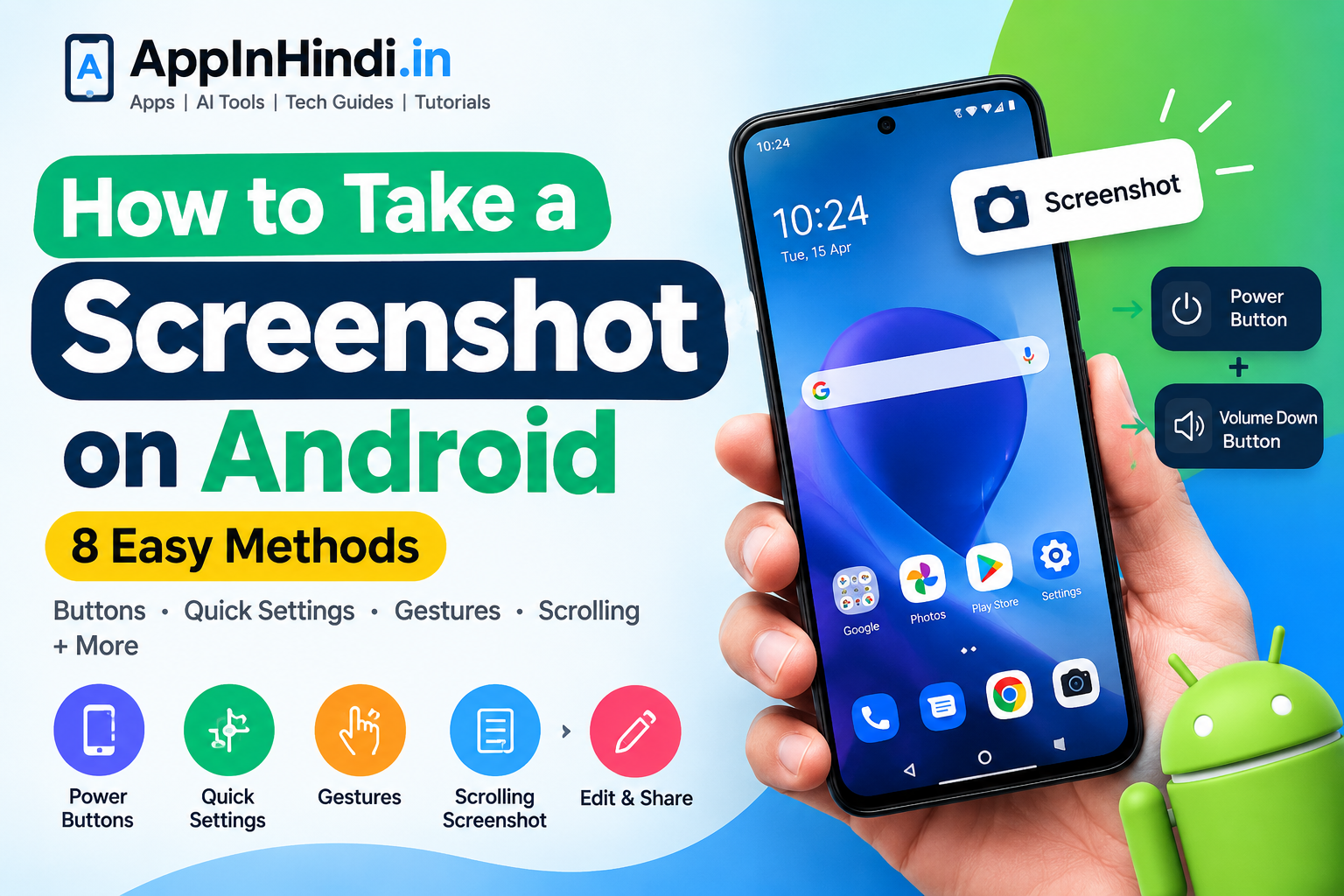
Taking a screenshot on an Android phone is one of the quickest ways to save something on your screen. You can capture a conversation, webpage, photo, error message, payment confirmation, or anything else you need to remember or share.
The exact method can vary slightly depending on your Android version and phone manufacturer, but the methods below work across many Android devices.
📸 Method 1: Use the Power + Volume Down Buttons
This is the most common Android screenshot method.
Steps:
- 📱 Open the screen you want to capture.
- 🔘 Press the Power button and Volume Down button at the same time.
- ⏱️ Hold them for about a second.
- ✨ Your screen will flash and a screenshot preview may appear.
- 🖼️ Tap the preview to edit, crop, share, or delete the screenshot.
Tip: Press both buttons simultaneously rather than holding them for several seconds.
👆 Method 2: Use the Screenshot Option in Quick Settings
Some Android phones provide a Screenshot button in Quick Settings.
- 📱 Open the screen you want to capture.
- ⬇️ Swipe down from the top of the screen.
- ⬇️ Swipe down again if necessary to expand Quick Settings.
- 📸 Tap Screenshot.
- ✅ Your screenshot will be captured automatically.
If you don’t see Screenshot, tap the Edit or pencil icon and check whether the Screenshot tile can be added.
✋ Method 3: Take a Screenshot With Gestures
Some Android manufacturers provide gesture-based screenshot options.
For example, certain Samsung Galaxy phones support gestures such as Palm swipe to capture.
To check whether your phone supports a screenshot gesture:
Settings → Advanced features → Motions and gestures
Look for an option related to Palm swipe to capture or screenshots.
⚠️ Menu names can differ depending on your phone model and software version.
📜 Method 4: Take a Scrolling Screenshot
Want to capture an entire webpage or long conversation instead of only what’s visible?
Try a scrolling screenshot.
- 📱 Take a normal screenshot.
- 🔽 Look for the Scroll capture or scrolling screenshot button in the screenshot toolbar.
- 👆 Tap it to continue capturing additional content.
- 🛑 Stop when you’ve captured everything you need.
- 💾 Save the screenshot.
Note: Scrolling screenshots aren’t supported in every app or on every Android device.
🎙️ Method 5: Use Google Assistant
Depending on your Android device and software configuration, you may also be able to use Google Assistant for screenshots.
Try saying:
“Hey Google, take a screenshot.”
If the command isn’t available on your device, use one of the hardware-button or Quick Settings methods instead.
✏️ How to Edit a Screenshot
After taking a screenshot, many Android phones display an editing toolbar.
You may be able to:
- ✂️ Crop the image
- 🖊️ Draw on it
- 🔤 Add text
- 🔍 Highlight information
- ↩️ Undo changes
- 📤 Share it
- 🗑️ Delete it
Editing options vary by manufacturer and Android version.
📂 Where Are Android Screenshots Saved?
Most Android phones save screenshots in:
Gallery/Photos → Screenshots
On many devices, you can also find them through:
Files → Images → Screenshots
The exact folder can vary by manufacturer, Android version, and gallery/file-management app.
🔧 Screenshot Not Working? Try These Fixes
If your Android phone isn’t taking screenshots:
1. 🔄 Restart your phone
A simple restart can resolve temporary system issues.
2. 🔘 Press the buttons together
Make sure Power + Volume Down are pressed at almost exactly the same time.
3. 💾 Check your storage
Very low storage can prevent new screenshots from being saved.
4. 🔒 Check the app
Some apps intentionally prevent screenshots for security or privacy reasons.
5. ⚙️ Try another method
Use Quick Settings or a supported gesture instead of the hardware buttons.
📱 How to Screenshot on Popular Android Phones
The basic Power + Volume Down method works on many Android phones, including devices from:
- 📱 Samsung Galaxy
- 📱 Google Pixel
- 📱 OnePlus
- 📱 Xiaomi
- 📱 Redmi
- 📱 Motorola
- 📱 OPPO
- 📱 vivo
- 📱 Nothing
However, advanced features such as scrolling screenshots, gestures, and screenshot editing can differ between manufacturers.
❓ Frequently Asked Questions
How do I screenshot on Android?
The easiest method is to press the Power + Volume Down buttons simultaneously for about one second.
How do I take a screenshot without the Power button?
Depending on your phone, you can use Quick Settings, gestures, Google Assistant, or an accessibility feature.
How do I take a long screenshot on Android?
Take a normal screenshot and look for Scroll capture, Capture more, or a similar option in the screenshot toolbar.
Where are screenshots stored on Android?
Screenshots are generally stored in your Gallery/Photos app, usually inside a Screenshots album.
Why can’t I screenshot an app?
Some apps restrict screenshots for security, privacy, or copyright-related reasons. In those cases, Android may prevent the capture.
🚀 More Android Screenshot Guides
Continue your screenshot journey with these guides:
📱 How to Screenshot on Samsung Galaxy
📱 How to Screenshot on Google Pixel
📱 How to Take a Scrolling Screenshot on Android
📱 How to Screenshot Without the Power Button
📱 Where Are Screenshots Saved on Android?
📱 How to Fix Screenshot Not Working on Android