
You deleted a file from Dropbox, maybe by accident, maybe while cleaning up old folders, and now you need it back. If you’re panicking because it’s been more than a month, take a breath first. How to recover deleted files on Dropbox isn’t as strict as most people assume, and the standard rules don’t always mean your data is gone for good.
Here’s the direct answer: Dropbox keeps deleted files in a hidden recovery window that ranges from 30 days on free and standard plans up to 180 days on certain business tiers with Extended Version History. Even after that window closes, there are still a few backup options worth checking, including local sync folders, third-party backup tools, and version history on files that were edited rather than deleted outright.
In this guide, you’ll get exact steps to restore files and folders inside the normal Dropbox window, plus what to try when that window has already passed. We’ll cover the web interface, the desktop app, and a few workarounds most tutorials skip entirely.
How Dropbox handles deleted files and recovery windows
Dropbox doesn’t actually erase a file the moment you hit delete. Instead, it moves the file into a hidden trash layer that stays attached to your account, invisible in your regular folders but still recoverable through the web interface or app. Think of it less like a shredder and more like a storage locker with an expiration date stamped on it.
Expiration dates vary a lot depending on your plan, and this is where most people get tripped up. Basic and Plus accounts get a flat 30-day recovery window for anything deleted or overwritten. Professional and standard Business accounts still work off that same 30-day default unless you’ve added Extended Version History as a paid add-on. Business Advanced, Enterprise, and some legacy Business plans include longer retention automatically, sometimes stretching to 180 days.
| Plan Type | Default Recovery Window | Extended Option |
|---|---|---|
| Basic (Free) | 30 days | Not available |
| Plus | 30 days | Not available |
| Professional | 30 days | Extended Version History (add-on) |
| Business / Business Standard | 30 days | Extended Version History (add-on) |
| Business Advanced | 180 days | Included |
| Enterprise | 180 days | Included |
Counting matters here too. The clock starts on the day you delete or overwrite the file, not the day you notice it’s missing. So if you deleted a spreadsheet on the 1st and didn’t realize until the 35th, you’re already outside the standard window even though it feels recent to you.
If you catch the deletion within 30 days, recovery is almost always a two-click job. After that, it depends entirely on your plan.
Versioning works alongside deletion but isn’t the same thing. If you edited a document and saved over the original content rather than deleting the file outright, Dropbox treats that as a new version, not a deletion. Version history for files (separate from full folder deletion) can sometimes go back further than 30 days depending on your plan, which matters a lot if you’re trying to recover deleted files from Dropbox that were actually just edited into oblivion rather than removed.
One more thing worth knowing upfront: deleting a shared folder doesn’t just affect you. If you’re the owner, other members lose access to the files too, though they may still see the folder in their own trash depending on permissions. If you’re a guest in someone else’s shared folder and you delete something, it goes to the owner’s recovery window, not yours. That distinction trips up a lot of teams who assume everyone has equal recovery rights.
Step 1. Restore deleted files from Dropbox.com
The web interface is the fastest place to check first, especially if you’re not sure which device the file was deleted from. Dropbox syncs deletions across every connected device, but the web dashboard gives you a single view of everything in your account’s trash, regardless of where the deletion happened. This makes it the best starting point when you want to recover deleted files from Dropbox without hunting through multiple apps.
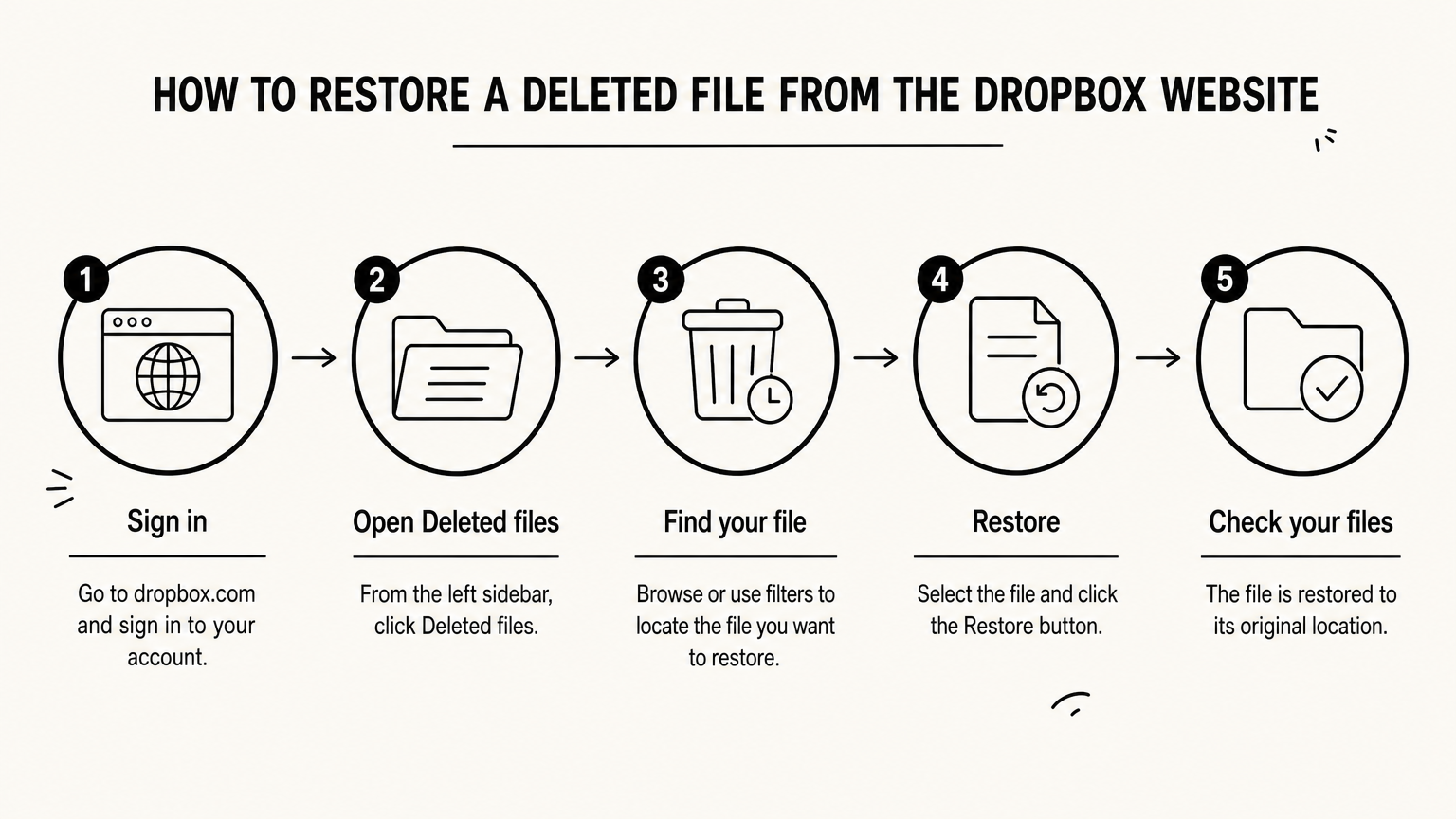
Log into your account at dropbox.com and follow these steps:
- Click "Deleted files" in the left sidebar (sometimes labeled "All files" with a filter toggle above it).
- Browse or search by file name if you remember it.
- Click the file or folder you want back.
- Select "Restore" from the menu that appears, either right-click or the button at the top.
- Confirm the location. Dropbox typically restores files to their original folder path, even if that folder itself was deleted and needs to reappear.
Selecting multiple files at once works too, which saves time if you accidentally cleared out an entire project folder rather than a single document. Just hold Ctrl (or Cmd on Mac) while clicking each item before hitting restore.
If a file shows up in the deleted files list at all, restoring it takes under a minute, no matter how large it is.
Searching matters more than people expect here. Dropbox’s search bar inside the deleted files view only matches exact or partial file names, not content inside documents. If you can’t remember the exact name, try sorting by deletion date instead, since that narrows things down fast when you know roughly when the file disappeared. Restored files land back in their sync folder within seconds if you’re running the desktop app, so check there immediately after confirming the restore.
Step 2. Recover files using the desktop or mobile app
Not everyone wants to open a browser just to fish a file out of trash, and Dropbox’s desktop and mobile apps both handle recovery too, though the steps look a bit different from the web version. Whichever platform you’re on, the underlying trash system is the same one described earlier, so anything you restore here pulls from that identical 30 day (or extended) window.
Recovering from the desktop app
Windows and Mac users get a shortcut that skips the browser entirely. Right-click the Dropbox icon in your system tray or menu bar, open the Dropbox website link from that menu, and you’ll land directly in the same deleted files view covered in Step 1. There’s no separate desktop-only trash, so the process is really just a faster path to the web interface rather than a different tool.
Recovering from the mobile app
Mobile recovery works a little differently since the app itself hosts the trash view instead of redirecting you out. On iOS or Android, open the Dropbox app and tap into the menu, then look for "Deleted files" under your account or files section. From there:
- Tap the file or folder you want back.
- Select "Restore" from the options menu.
- Confirm the restore location if prompted.
Whether you’re on a laptop or a phone, the trash lives in one place, your account, not your device.
Folder deletions restore the same way as single files here, and syncing back to your phone’s storage usually takes a few seconds on decent Wi-Fi. If you’re trying to recover deleted files from Dropbox while away from your computer, the mobile app genuinely holds up as a full substitute, not a stripped-down backup option.
Step 3. Recover files after 30 days with Rewind or extended history
Once the standard window closes, your options narrow fast, but they don’t disappear entirely. Dropbox Rewind is the feature built for this exact situation, letting eligible accounts roll back an entire folder or your whole account to a specific point in time rather than hunting for individual files. It’s the closest thing Dropbox offers to a true undo button for mass deletions, and it’s worth checking before you assume everything past day 30 is unrecoverable.
Getting to Rewind depends on your plan tier, since it’s tied to the same Extended Version History add-on mentioned earlier.
| Plan | Rewind Access | Lookback Period |
|---|---|---|
| Basic / Plus | Limited (30 days) | Matches standard trash window |
| Professional | Available with add-on | Up to 180 days |
| Business Standard | Available with add-on | Up to 180 days |
| Business Advanced / Enterprise | Included | Up to 180 days (sometimes longer) |
Running Rewind takes a few clicks:
- Go to dropbox.com and open the folder (or account root) you want to restore.
- Click the folder options menu and select "Show Rewind" or "Rewind this folder."
- Drag the timeline slider back to a date before the deletion happened.
- Preview the file list Dropbox shows for that date.
- Click "Rewind" to confirm, which restores everything to match that snapshot.
Rewind doesn’t just bring back one file, it resets the whole folder’s state, so double-check the preview before confirming.
Heads up: Rewind restores folder contents to match the past state, which means files created after your chosen date inside that folder could get affected too. Anyone researching how to recover deleted files on Dropbox long after the fact should treat Rewind as a folder-level tool, not a scalpel, and preview carefully before locking in the date.
Step 4. Try advanced fixes when files still won’t restore
When Rewind doesn’t cover your timeframe and the trash window has long since closed, you’re moving into backup territory rather than Dropbox’s own recovery tools. This is the point where most tutorials give up, but a few realistic options still exist depending on how you originally worked with the files.
Start with your local sync folder if you ever had the Dropbox desktop app installed on a computer that stayed on for a while after the deletion. Windows and Mac both keep their own trash or recycle bin separate from Dropbox’s cloud trash, and a file deleted through File Explorer or Finder sometimes sits there even after Dropbox’s own window expires. Check these spots in order:
- Your computer’s Recycle Bin (Windows) or Trash (Mac), searching by file name.
- Any external backup tool you run alongside Dropbox, like Time Machine, File History, or a cloud backup service such as Backblaze.
- Shared drives or synced folders on teammates’ machines, since a deletion on your end doesn’t always propagate instantly if someone else’s sync was paused.
Once Dropbox’s own window closes, your best shot usually lives outside Dropbox entirely, on whatever device or backup tool still has an old copy sitting around.
The same logic applies to phones, where you can often recover lost photos without an iCloud backup after an update wipes them; email attachments are another overlooked source. If you ever shared the file through a Dropbox link sent by email, or attached the original document before uploading it, check your sent folder. It sounds obvious, but it’s saved more than a few people who assumed the only copy was inside Dropbox.
Finally, if the file mattered enough, contact Dropbox support directly. Support can’t override plan-based retention limits, but they occasionally have insight into account-specific edge cases, especially for business accounts with unusual sync history.
Keeping your files safe going forward
Getting your files back once is a relief, but you don’t want to relearn how to recover deleted files on Dropbox every few months. Turn on desktop notifications for large deletions, so a bulk removal doesn’t slip past you until day 40. If you’re on a paid tier, check whether Extended Version History is worth adding, especially for shared folders where teammates might delete things you never see coming.
Backups outside Dropbox still matter too. A second copy on an external drive or a separate cloud service costs little and saves you from ever depending on a single recovery window again. Treat Dropbox’s trash as a safety net, not your only one.
If you found this walkthrough useful, you’ll probably like our other practical recovery guides, like the one on retrieving lost WhatsApp databases and messages after a failed iOS 18 update. Head over to appinhindi.in for more step-by-step fixes worth bookmarking.