
You’ve got a budget set aside for a new laptop or desktop, and now you’re stuck on the same question everyone faces at this stage: Mac vs Windows computer, and which one actually fits how you work. Reviews online tend to pick a side and stick with it, which doesn’t help much when your needs don’t match the reviewer’s.
The honest answer is that neither platform wins outright. Mac OS vs Windows comes down to what software you rely on, how much you want to spend, and whether you value a locked-down, polished system or one you can tweak endlessly. A video editor and a PC gamer will land on opposite answers, and both would be right for themselves.
This guide breaks down the real differences between Mac laptops and Windows laptops, covering performance, pricing, software compatibility, and repairability, so you’re not guessing based on brand loyalty or a salesperson’s pitch. By the end, you’ll know exactly which system matches your daily habits and your wallet.
Why the Mac vs Windows choice matters more than you’d think
Most people treat this purchase like picking a phone case: a matter of taste, easily reversed. It isn’t. The windows computer vs Mac decision shapes which software you can run, how much you’ll spend on accessories over the next five years, and how fast you can actually get work done once the new-machine excitement wears off. Switching platforms later means relearning shortcuts, replacing peripherals, and sometimes repurchasing software you already paid for once. That’s a real cost, not a hypothetical one, and it’s why this choice deserves more than fifteen minutes of comparing spec sheets in a store.
You’re buying into an ecosystem, not just a machine
Apple and Microsoft don’t just sell hardware, they sell an entire environment your files, apps, and habits live inside. Choose a Mac and you’re opting into iCloud syncing, Handoff between iPhone and laptop, and an App Store with tight quality control. Choose Windows and you’re picking a system that plays nicer with a much wider range of hardware, from budget printers to niche industrial software. If you already own an iPhone, a Mac laptop vs Windows laptop decision leans Mac, since features like AirDrop and universal clipboard just work without setup. If your workplace runs on Microsoft 365, Active Directory, and specific enterprise tools, a windows laptop vs Mac comparison usually favors Windows, because compatibility friction disappears entirely.
The platform you pick doesn’t just run your software, it decides which software you’re allowed to run at all.
The real costs show up after you buy
Sticker price is the easy part. What catches people off guard is everything that comes after: replacement chargers, dongles for missing ports, third-party repair options, and software subscriptions that may or may not have a native version for your OS. Mac hardware tends to hold resale value better, which softens the higher upfront cost, but repairs outside Apple’s own service network are harder to find and often pricier. Windows machines span such a wide price range that a windows computers vs Mac comparison really depends on which Windows laptop you’re comparing against which Mac.
| Cost factor | Mac | Windows |
|---|---|---|
| Entry price | Higher floor (MacBook Air starts around $999) | Wide range, from $300 budget laptops to $2,000+ workstations |
| Repairs outside brand network | Limited, often costly | Widely available, competitive pricing |
| Resale value after 3 years | Typically stronger | Varies heavily by brand and model |
| Software licensing | Often app-store bundled or subscription | Frequently subscription-based, more third-party options |
These aren’t abstract numbers. A student buying a Mac Air vs Windows laptops for four years of college needs to weigh that stronger resale value against a tighter starting budget, while someone building a home office on a shoestring might find three solid Windows options for the price of one Mac.
Your workflow habits get baked in
Once you’ve spent a year on a platform, your muscle memory belongs to it. Keyboard shortcuts, window management, right-click menus, even how you rename a batch of files, all of it gets wired into how you work. That’s why a laptop Mac vs Windows switch feels harder the longer you’ve used the other system, not easier. People who’ve spent a decade on Windows often find MacOS’s window snapping and menu bar layout genuinely disorienting for the first few weeks, and the reverse is just as true for lifelong Mac users trying to navigate Windows’ File Explorer and taskbar.
Understanding this upfront changes how you shop. Instead of asking which laptop reviewers rate higher this year, ask which platform matches how you already work, what software your job or hobby actually requires, and how much friction you’re willing to accept while you adjust. Get that right, and the rest of this comparison, performance, cost, gaming, software compatibility, becomes a lot easier to weigh, because you’re filtering it through your own actual needs instead of a generic ranking.
How to decide between Mac and Windows for your needs
Forget the spec sheet for a minute. The fastest way to settle windows vs mac laptop shopping is to run three questions past yourself: what software do you actually need, what’s your real budget ceiling, and how much tinkering do you want to do once you own the thing. Answer those honestly before you walk into a store, and the decision usually makes itself, because most people already know the answer, they just haven’t asked the right question yet.
Start with your must-have software
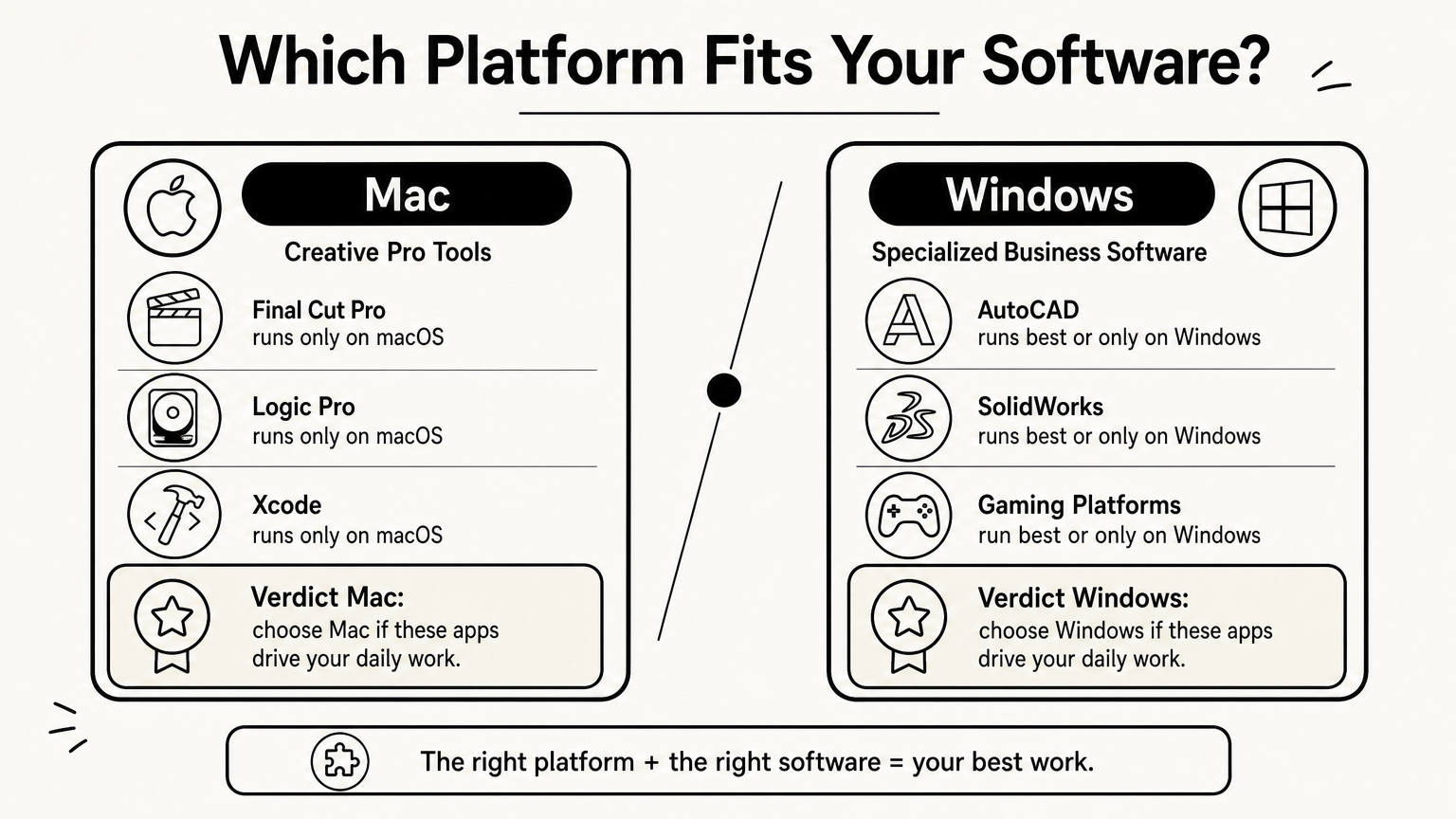
List out the three or four programs you use daily, then check which platforms support them natively. Video editors leaning on Final Cut Pro, audio producers running Logic Pro, and anyone deep in the Apple developer ecosystem (Xcode only runs on macOS) should stop debating and buy a Mac. Meanwhile, PC gamers, engineers running AutoCAD or SolidWorks, and anyone tied to specialized Windows-only business software will find a mac laptop vs windows laptop comparison isn’t even close, Windows wins by default because the software simply doesn’t exist elsewhere.
- Check if your must-have apps have a native version for each OS, not just a "web app" workaround
- Search whether your industry’s standard software (CAD, DAW, IDE) runs best on one platform
- Confirm your work or school already issues a platform, since matching it avoids file-compatibility headaches
If your job or hobby depends on one specific app, that app has already made your decision for you.
Set a real budget, not just a purchase price
Budget isn’t just the number on the price tag. Factor in accessories you’ll need immediately, a USB-C hub for a MacBook with limited ports, or a discrete GPU upgrade for a Windows laptop meant for gaming. Once you add those in, a mac laptop vs windows comparison often narrows: a $999 MacBook Air with no extra spending can end up cheaper in year one than a $700 Windows laptop that needs a $150 dock, more RAM, and a software subscription with no student discount. Set a total cost ceiling, not a sticker-price one, and shop against that number instead.
Decide how much control you want
Some people want a machine that gets out of their way, boots fast, updates quietly, and never asks them to troubleshoot a driver. That’s macOS’s whole pitch. Others want to swap out a graphics card, run multiple operating systems, or build a custom rig from parts, none of which Apple’s locked-down hardware allows. If you enjoy opening the case and upgrading components yourself, a windows pc vs mac computers decision points hard toward Windows, since most Windows desktops and many laptops still support user-replaceable RAM and storage, while recent MacBooks solder everything down at the factory.
Mac vs Windows: performance, hardware, and specs compared
Specs on paper rarely tell the full story, but they’re still the fastest way to spot where Mac laptops and Windows laptops genuinely diverge. Apple’s move to its own M-series chips changed the game here, giving MacBooks battery life and thermal efficiency that most Windows laptops still can’t match at the same price point. Windows, meanwhile, keeps its edge in raw configurability, letting you pick exactly the CPU, GPU, and RAM combination your workload demands instead of choosing from a handful of fixed Apple configurations.
Chips, batteries, and everyday speed
Apple’s M-series processors (M2, M3, M4, and beyond) run cooler and sip less power than most comparable Intel or AMD chips, which is why a MacBook Air can hit 15-18 hours of real-world battery life without a fan even spinning up. Windows laptops with Intel’s latest Core Ultra chips or AMD’s Ryzen AI series have closed the gap substantially, and some now match Apple on efficiency, but that performance usually shows up in pricier configurations, not the budget end of the lineup. If daily battery anxiety is your biggest complaint with your current laptop, that alone might settle the mac vs windows question before you even open a spec sheet.
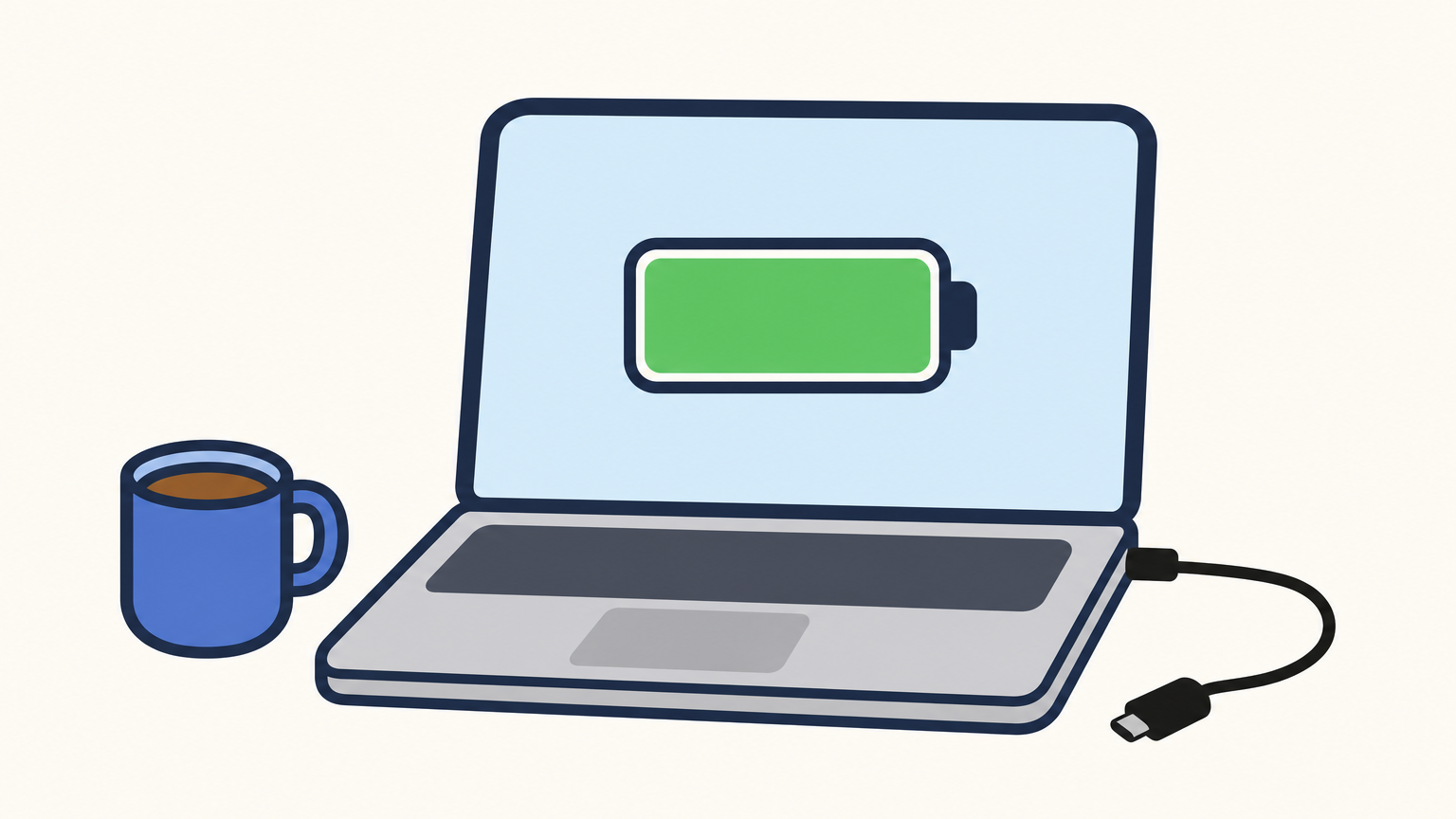
Battery life used to be Apple’s biggest edge over Windows; today it’s one of several, not the only one.
Build quality and repairability
Apple’s unibody aluminum construction feels sturdier than a lot of plastic-bodied Windows laptops, though premium Windows brands like Dell’s XPS line or Lenovo’s ThinkPad series close that gap easily. Repairability is where the two platforms split hardest. Most modern MacBooks solder RAM and storage directly to the logic board, meaning what you buy is what you’re stuck with for the machine’s lifetime. Plenty of Windows laptops still let you pop the back panel, add a stick of RAM, or swap in a bigger SSD yourself, which matters if you plan on keeping the machine past its third or fourth year.
| Spec area | Mac | Windows |
|---|---|---|
| Chip options | Apple Silicon only (M-series) | Intel, AMD, wide range of tiers |
| Battery life (typical) | 15-18 hours (MacBook Air/Pro) | 6-12 hours, varies widely by model |
| RAM/storage upgrades | Soldered, fixed at purchase | Often user-upgradeable |
| Display quality | Consistently high (Retina/mini-LED) | Ranges from budget TN panels to premium OLED |
| Build materials | Aluminum unibody standard | Plastic to aluminum, brand-dependent |
Displays and ports, the details people forget to check
Apple’s Retina and mini-LED displays are close to guaranteed quality across the entire MacBook lineup, even the base Air. Windows laptops don’t offer that consistency, since a $400 budget model might ship with a dim, washed-out panel while a $1,800 flagship gets genuinely stunning color accuracy. Ports tell a similar story: recent MacBooks trimmed down to mostly USB-C/Thunderbolt, forcing many users into a dongle or hub, while a lot of Windows laptops still include HDMI, USB-A, and SD card slots built in. If you plug in external monitors, cameras, or older peripherals often, check the port layout before you buy, not after.
Mac vs Windows: cost, gaming, and software compatibility
Price comparisons get messy fast because both platforms span such a wide range, but a few patterns hold steady enough to plan around. Apple keeps a tight lineup with predictable pricing, while Windows manufacturers flood the market with dozens of configurations at every price point, so a mac vs windows computer comparison really depends on which specific models you’re cross-shopping.
Where your money actually goes
A base MacBook Air covers most everyday tasks without upgrades, since Apple doesn’t let you cheap out on RAM or storage the way budget Windows brands do. That consistency is worth something: you rarely end up with a Mac that feels underpowered the day you unbox it, while a windows vs mac laptop search turns up plenty of sub-$500 machines that struggle with more than a few browser tabs open. On the flip side, if you just need a machine for email, spreadsheets, and streaming, a $400 Windows laptop does that job fine, and spending Mac money on it would be wasteful.
| Use case | Better value pick |
|---|---|
| Light browsing, email, streaming | Budget Windows laptop |
| Creative work (video, audio, design) | Mac |
| Gaming | Windows |
| Business software tied to Microsoft tools | Windows |
| Long-term resale value | Mac |
Gaming: the gap that hasn’t closed
Here’s where the laptop windows vs mac debate stops being close. Windows dominates gaming because it has the hardware options (dedicated GPUs from Nvidia and AMD), the platform support (Steam, Battle.net, Epic Games Store all run natively), and decades of developer investment that Apple never chased seriously. macOS gaming has improved with Apple Silicon and tools like Game Porting Toolkit, but the library remains a fraction of what’s available on Windows, and new AAA titles routinely launch Windows-only.
If gaming is even a secondary use case for your next machine, Windows isn’t just the better choice, it’s close to the only one.
Software compatibility, the deciding factor for many
Beyond gaming, software availability is often what actually decides a mac computers vs windows purchase. Run through this checklist before buying:
- Adobe Creative Cloud, Microsoft Office, and most mainstream productivity apps run well on both platforms
- Industry-specific software (AutoCAD, SolidWorks, many finance and legal tools) frequently skips macOS entirely or ships a stripped-down version
- Apple’s own apps (Final Cut Pro, Logic Pro, Xcode) only run on macOS, full stop
- Some older or niche Windows-only programs run on Mac only through workarounds like virtual machines, which cost extra money and add friction
If you rely on niche professional software, search for it by name plus "macOS" before you buy anything, because assuming compatibility is the single most common mistake people make in this whole comparison.
What to expect when switching between Mac and Windows
Switching platforms isn’t just a settings change, it’s a temporary productivity hit you should plan for instead of dread. Whether you’re moving from a windows laptop to Mac or the other direction, expect two to three weeks of feeling slower than you were on your old machine before your hands relearn where everything lives. That’s normal, and it happens to everyone, not just people who "aren’t tech-savvy."
The first two weeks are the hardest
Expect your muscle memory to fight you constantly at first. Copy and paste, screenshot shortcuts on Mac and Windows 11, switching between apps, even right-clicking, all use different keys and gestures depending on the platform, and your fingers will keep reaching for the wrong ones.
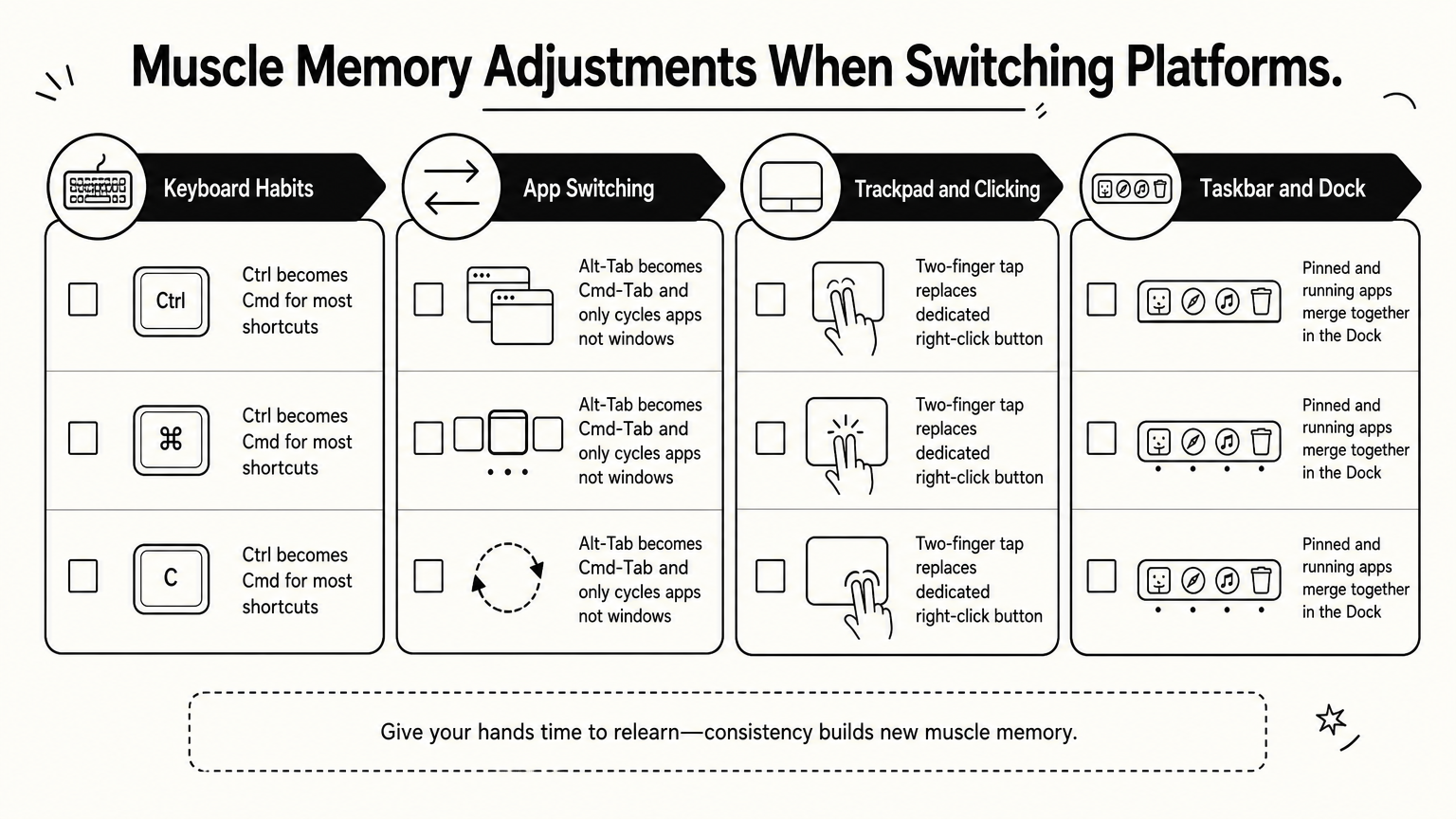
- Ctrl becomes Cmd for most shortcuts on macOS, but Ctrl still handles some terminal and Unix-style commands
- Alt-Tab on Windows becomes Cmd-Tab on Mac, and it only cycles through apps, not individual windows, which trips up longtime Windows users
- Right-click still works on both, but Mac trackpads default to a two-finger tap instead of a dedicated button
- The taskbar’s app-pinning behavior on Windows has no exact equivalent in macOS’s Dock, which merges running and pinned apps together
Give yourself two weeks before judging a new platform. Muscle memory, not the operating system, is usually what’s actually slowing you down.
File management and cloud syncing differences
Finder and File Explorer look similar on the surface but behave differently underneath. macOS hides file extensions by default and organizes more around tags and Spotlight search, while Windows leans on folder hierarchies and drive letters that longtime users navigate almost unconsciously. Cloud syncing adds another wrinkle: OneDrive integrates deeply into Windows’ File Explorer, while iCloud Drive does the same for Finder, so if you’re switching, you’ll likely juggle both services for a while until you fully migrate your files over.
What actually transfers easily
Good news: most of your daily software and files move over without much drama. Browsers carry your bookmarks and passwords through your Google or Microsoft account sign-in. Documents in Word, Excel, and Google Docs open identically on either platform since they’re cloud-based or use standard file formats. Photos and videos transfer fine too, though moving a full Apple Photos library to Windows (or the reverse) takes some manual exporting since neither company makes that process painless on purpose.
| What transfers easily | What needs extra work |
|---|---|
| Browser bookmarks, passwords | Photo library organization |
| Cloud documents (Word, Docs, Sheets) | Apple-only apps (no Windows version exists) |
| Music streaming libraries | Locally installed Windows-only software |
| Email accounts | Custom keyboard shortcuts and window layouts |
Once you’ve cleared that adjustment window, most switchers report the same thing: the platform they landed on starts feeling just as natural as the one they left, they just needed to stop comparing every click to how it used to work.
Finding the right computer for how you actually work
Neither platform is objectively better, and anyone telling you otherwise is skipping the part where your job, budget, and software needs actually differ from theirs. The mac vs windows computer debate always comes back to the same three questions: what apps you can’t live without, how much you’re willing to spend once accessories and repairs enter the picture, and whether you want a machine that just works or one you can rebuild from parts. Answer those honestly and the shopping gets a lot faster, because you’re no longer chasing a ranking, you’re matching a laptop to your actual workflow.
Before you check out, run your must-have software through the compatibility checklist above one more time. It takes ten minutes and saves you from a return shipping label. And once your new machine arrives, start with the everyday basics: our guide on how to screenshot on Windows, Mac, iOS, and Android covers the first shortcut you’ll want on whichever platform you land on.